How to Write a Product-Demo B-Roll Prompt in Quby
Plan one honest context shot in Quby Video Studio, then place it beside real product footage and review what viewers may infer.
Product-demo B-roll should make a real feature easier to understand. A dramatic synthetic clip may hold attention, but it cannot prove how a product operates or what it actually includes. Use generated B-roll for mood, transitions, and visual context; reserve factual demonstrations for footage or approved product images.
This guide starts with a small shot brief and takes it to Quby Video Studio's Text to Video route. Quby's live tool page lists text-to-video, and the studio route is reachable, although this check reached sign-in rather than a completed generation. Model choices, duration, price, and account access should be confirmed in the signed-in studio. The prompting structure below draws on Google DeepMind's Veo prompt guide, which recommends specifying framing, motion, style, and lighting. These are general directing principles, not a claim that a particular Veo version is available in Quby.
Give each shot a job
Start with the finished video's outline. A simple product demo might have three sections: the problem, the real product action, and a calm closing image. Mark where actual proof is required. If the video claims that a coffee grinder reaches a particular grind size, film the real grinder and resulting grounds. A generated close-up of an imaginary grinder cannot verify that claim. B-roll can bridge from the problem to the real demonstration or give a short moment of visual breathing room after it.
For each B-roll shot, write one sentence explaining its job. For example: "A warm, quiet kitchen establishing shot signals the morning routine before the real product appears." Then choose one subject, one action, one camera movement, and one lighting condition. Do not ask one four-second shot to tell the entire product story.
Check the destination format early. A horizontal website video and a vertical social clip need different framing. If Quby offers an aspect-ratio control for your selected mode, choose the target format before generating. Leave room around the subject for captions or a crop, but do not assume a later crop can rescue a subject placed against the edge.
Write the first prompt in Quby
Open Quby Video Studio, sign in if asked, and look for Text to Video. Inspect the model and settings actually offered to your account. The public page describes multiple video modes, but the signed-in selector determines which controls you can use. If Text to Video is unavailable, do not substitute an unrelated mode and claim the same workflow worked.
Use a prompt that reads like a short direction to a camera operator:
Four-second wide shot of a sunlit kitchen counter at dawn. One empty ceramic cup sits near a folded linen cloth. Slow, steady camera push toward the cup. Soft side light, natural shadows, quiet documentary style. No hands, no visible brand names, no text, no extra appliances.
The exact four-second setting is an example brief. Select a duration only if the current studio control offers it. The prompt gives the scene, subject, movement, and lighting; it does not pretend to show the product being used. A brand name omitted from the shot is less likely to be rendered incorrectly, and the absence of a fictional appliance avoids a mismatch with the real footage that follows.
For a second shot, change the editorial purpose rather than merely adding adjectives:
Close-up of morning light moving across loose coffee beans on a wooden counter. Static camera; only the light and a faint shadow shift. Warm natural color, shallow depth of field. No grinder, packaging, labels, hands, or text.
That shot can bridge into a real grinder demonstration. It offers texture without inventing the product. If you need to show exact packaging, features, or a logo, use an approved photograph or filmed shot instead. Text-to-video is usually a poor place to demand precise lettering.
Review before spending on variations
After a generation completes, watch the result at normal speed and pause at the beginning, middle, and end. Check whether the requested camera move is coherent, whether objects appear or disappear, and whether any accidental text or invented branding appears. Does the clip look like it belongs beside your real footage in color and lighting? A pretty image with inconsistent motion can distract from the demonstration.
Do not measure success only by visual polish. Put the generated shot between two real cuts in a rough timeline. If it slows the explanation, shorten it or remove it. If it seems to imply the product was filmed in a setting where it was not, choose a more abstract context shot. The audience should know what is illustrative and what is evidence of the product.
Revise one variable at a time. If motion is too busy, request a static camera while keeping the scene. If the lighting clashes with your footage, change the light description. If a cup mutates or extra props appear, reduce the number of objects in the prompt. Regenerating with five changes at once makes it difficult to learn why one version improved.
Google DeepMind's prompt guide is useful because it separates framing, motion, lighting, and style. It does not guarantee the same controls or results in Quby, and it describes Veo specifically. Record the Quby model and settings you actually used if you later compare outputs. A comparison without that record is hard to reproduce.
Assemble an honest three-shot sequence
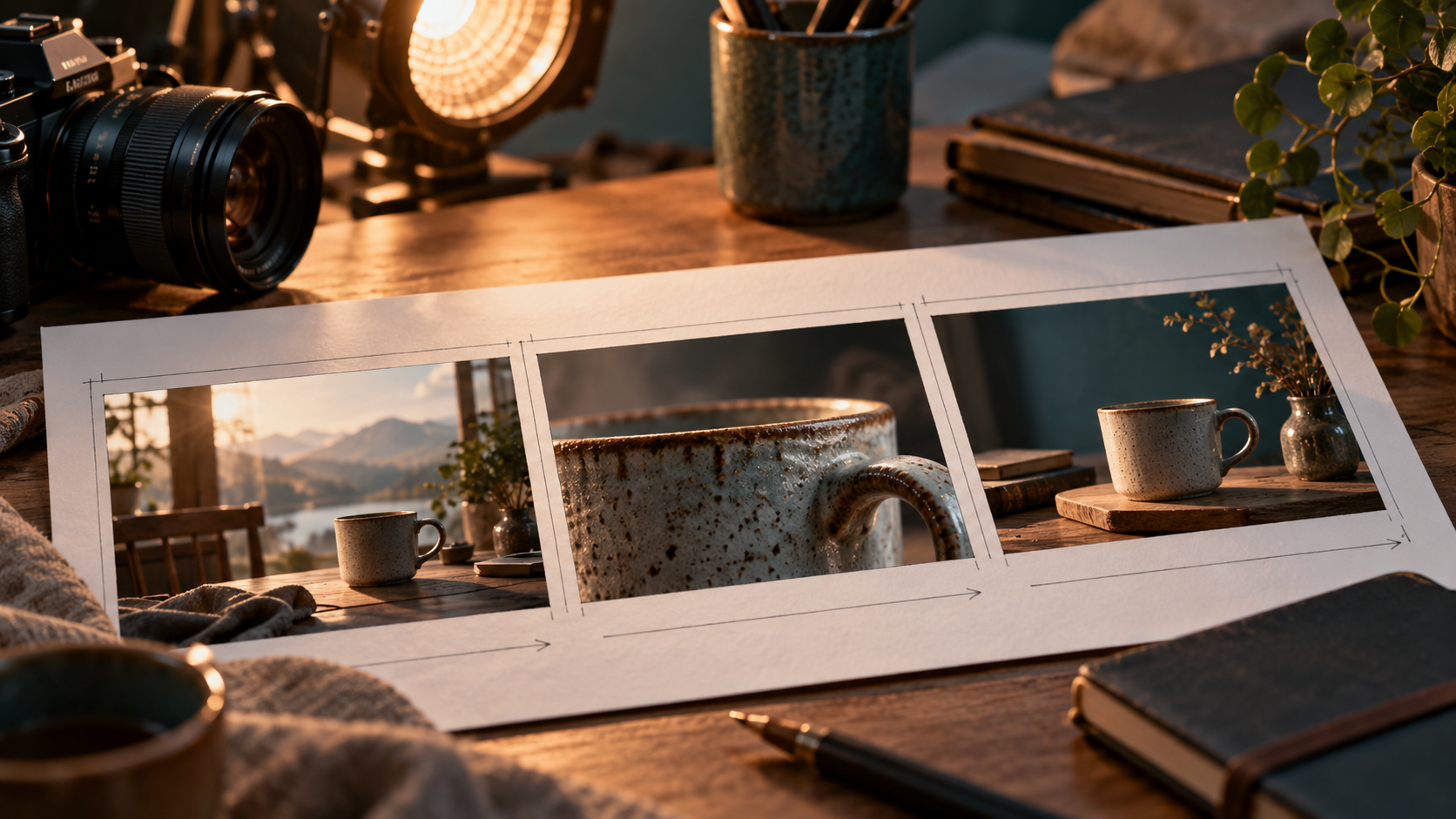
A practical sequence is: generated establishing B-roll, real product action, then a real product close-up or approved still. The generated first shot sets a mood. The middle shot carries the claim. The closing image gives viewers a recognizable product to remember. Keep sound and captions consistent across cuts. If you add synthetic sound, do not use it to imply a physical function that the product does not have.
Before publishing, run a truth check with someone who did not make the edit. Ask them which images they believe show the actual product. If they identify the generated shot as proof, the edit needs clearer framing or a different shot. Also check usage rights, platform disclosure requirements, and any client policy for synthetic media. Those requirements vary by destination and campaign.
For a product that changes appearance between shots, stop using generated footage of the item. Film the product or animate an approved still with a narrowly controlled motion, then compare its shape and markings to the original. The Quby image-to-video product-photo guide covers that separate route and its identity checks.
Bring one shot brief to Quby Video Studio's Text to Video route, make one context shot if the mode is available in your account, and place it next to real product footage. Keep the clip only if it improves the explanation without becoming false evidence.
Sources: Quby Video Studio and Google DeepMind's Veo prompt guide.
Ready to Create with AI?
Put these techniques into practice with Quby's professional AI creative tools.
Launch Creative Suite