Free AI HD Video in Google Vids: A Three-Scene Product Workflow
A practical three-scene product video brief you can test in Quby Video Studio, with Google Vids Omni 1.1 as a newly available alternative.
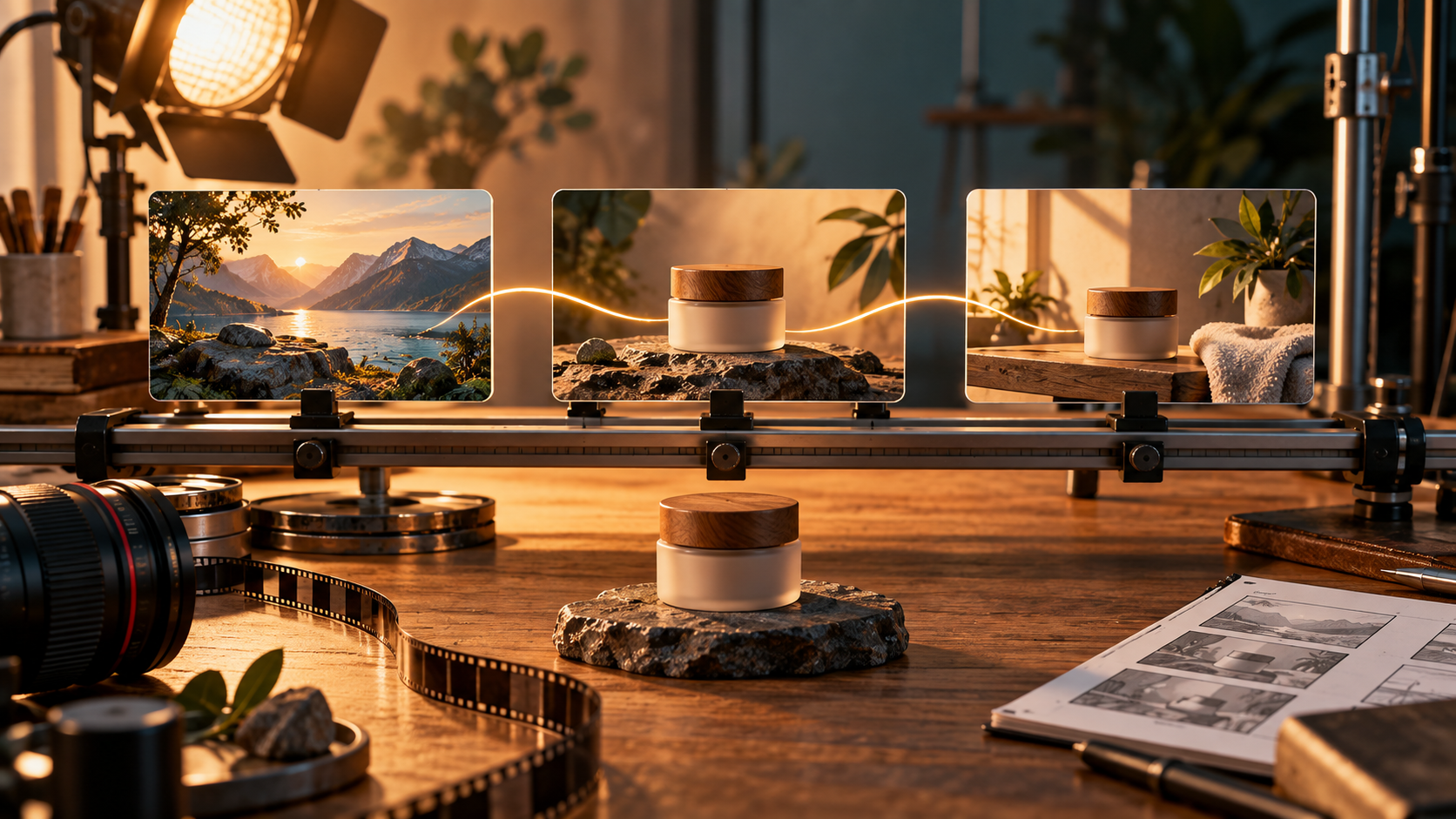
Google has opened AI video generation in Google Vids to anyone with a Google or Google Workspace account at no cost. The September 23 announcement says its Gemini Omni 1.1 Flash model can generate new scenes in 1080p, extend scenes while trying to preserve visual continuity, and let creators specify clip duration. That combination is useful for a small product video, where one attractive shot is not enough: the scenes have to fit a story and cut together cleanly.
If you want to turn the same idea into a product demo using Quby, start with the Quby Video Studio overview. It describes text-to-video, image-to-video, extension, and editing paths. The practical exercise below works as a brief for either editor, and the Quby steps show how to use that brief without assuming Google's Omni model is available inside Quby.
The new access does not mean every feature or volume is unlimited. Google points people who need more generation access toward Google AI plans, and teams toward Workspace Business or Enterprise. It also says Gemini 3.8 Flash-Lite voiceovers in more than 100 languages are coming soon, so they should not be planned as a feature available today. The workflow below uses the controls Google says are currently in Vids and keeps narration optional.
What changed in Google Vids
Google Vids already offered a way to assemble videos from templates and other media. Its current announcement brings Omni 1.1 generation to the general Google-account audience. On desktop, Google directs users to vids.new and the Create AI videos option. The new controls described in the announcement are specific: generate a scene in 1080p, set an exact duration, extend a scene, and upscale an existing AI clip. Google says scene extension aims to keep lighting, environment, and character appearance consistent as the shot continues.
Those controls matter because a product video is a sequence, not a gallery of unrelated clips. A six-second opening may need to match a four-second detail shot. If the product changes shape or the room lighting jumps between them, viewers notice before they hear the message. Duration and extension controls give a creator a better way to plan a timeline, though the result still needs visual review.
Make a 20-second brief before generating
Choose one product and one outcome. For this example, imagine a handmade desk lamp. The video should show the lamp on a desk, reveal how its warm light changes the workspace, and end with a clear product view. That is enough story for 20 seconds. Trying to explain every material, price, and feature in the same clip usually makes the edit less clear.
Write the constraints before opening Vids: the lamp's shade shape, base color, cable position, and whether a logo may appear. Add the intended platform and framing. A horizontal website clip and a vertical social clip require different compositions; do not assume one export will work for both. Decide which claims you can prove with real footage. If the brightness or battery life has not been measured, avoid a number in the script.
Split the story into three beats. Use roughly five seconds for a scene that establishes the desk and lamp, eight seconds for a closer view of the light in use, and seven seconds for the clean final product frame. These are editing targets rather than guaranteed model outputs. Use Vids' duration control to request them, then trim what you receive. Keep a fourth beat only if it answers a real viewer question.
Try the three-scene brief in Quby
Open Quby Video Studio, sign in if requested, and choose a generation mode that matches your source material. Use text-to-video if you have only the written brief; use image-to-video if you have an approved product image you want to animate. Check the models and generation terms shown in your account before selecting one, because the available lineup and capacity can change. This is a Quby workflow, not a claim that Google Vids' Omni model runs in Quby.
Generate the establishing shot first, using the fixed lamp description below. Inspect the shade, base, and cable. Save only a result that resembles the actual product. Then create the closer illumination shot and the final product frame with the same product details and visual style. If the tool offers a reference or extension option for the model you chose, use the approved first scene to help retain continuity; otherwise compare the output manually before keeping it. Assemble or export the selected scenes with the clip lengths that fit your target platform.
The choice between Vids and Quby comes down to the job. Vids' newly announced free Omni workflow is a simple way to try 1080p scene generation in Google's editor. Quby Video Studio is useful when you want to work across the generation and editing modes Quby presents in one place. Test a short draft in the tool you can access, then judge product accuracy, editability, time, and any generation limits rather than relying on a model name alone.
Prompt for continuity, not spectacle
Start with a reference description that you can reuse in each scene prompt: "A compact brass desk lamp with a cream conical shade, black braided cable, and a small round base on a walnut desk. Warm evening light, quiet modern studio, natural camera movement." Repeat the product details in every request. Do not rely on the model remembering a prior clip exactly.
For the opening, try: "Wide view of the same brass desk lamp, cream conical shade, black braided cable, and walnut desk. The lamp is off. A person places a notebook beside it. Five seconds, steady camera, space on the right for a short caption." For the second beat: "Closer view of the same lamp as it turns on and illuminates the notebook. Keep the shade shape, cable, desk, and room lighting consistent. Eight seconds, one slow camera move." For the ending: "Clean product view of the same lamp on the same desk, warm light on, no extra objects appearing, seven seconds, calm finish."
These prompts describe visible changes, timing, and what must stay fixed. They do not ask the model to invent a brand promise. If a generated lamp no longer matches the actual product, do not publish it as a representation of that product. Replace the shot with real footage or a clearly labeled concept image.
Use extension carefully
Scene extension is attractive when a useful clip ends just before the action completes. Extend the closer view only if the original scene is already accurate. Watch the join at normal speed and frame by frame. Check whether the lamp base moves, the cable jumps, shadows reverse, or a hand acquires an extra object. A smooth transition can hide an inaccurate product detail on first viewing.
Set the required duration before spending time polishing. If the cut needs eight seconds and a six-second scene already says everything, try extending by two seconds. If the model adds irrelevant motion, keep the shorter clip and adjust the timeline elsewhere. Exact clip length is useful, but continuity and truth matter more than hitting a number.
Google also describes 1080p upscaling for existing AI clips. Upscaling cannot repair an incorrect object or missing proof. Use it once the composition and content are approved. Then inspect edges, text, reflections, and motion artifacts at the size viewers will actually see. A higher-resolution mistake is still a mistake.
Finish with a simple review pass
Place the three scenes in order and watch the draft without sound. Can a first-time viewer tell what the product is and why the light matters? Then add a concise caption or recorded narration if the video needs context. Because Google's new multilingual AI voiceover feature is announced for later, use a voice option you can access now or record your own. Check spoken claims against the product sheet before exporting.
Compare the draft with one version made from real footage, even if the real version is rough. Ask which one represents the product more accurately and which one explains it faster. Save the prompts and the approved export together so you can repeat a successful scene or trace a disputed claim. Google says Omni-generated Vids clips include an embedded SynthID watermark. Follow platform and client disclosure requirements as well; the watermark does not replace a clear human review.
For your next draft, take the three prompts above into Quby Video Studio and generate just the first shot. If the lamp's defining details survive, make the remaining two scenes. If they do not, revise the reference description or use approved product imagery before spending more generations. The durable skill is the same in either editor: fixed product details, an intentional sequence, and a final accuracy check.
Ready to Create with AI?
Put these techniques into practice with Quby's professional AI creative tools.
Launch Creative Suite