Make a YouTube Thumbnail That Matches the Video
Build an honest, phone-readable YouTube thumbnail in Quby and check the export against YouTube guidance.
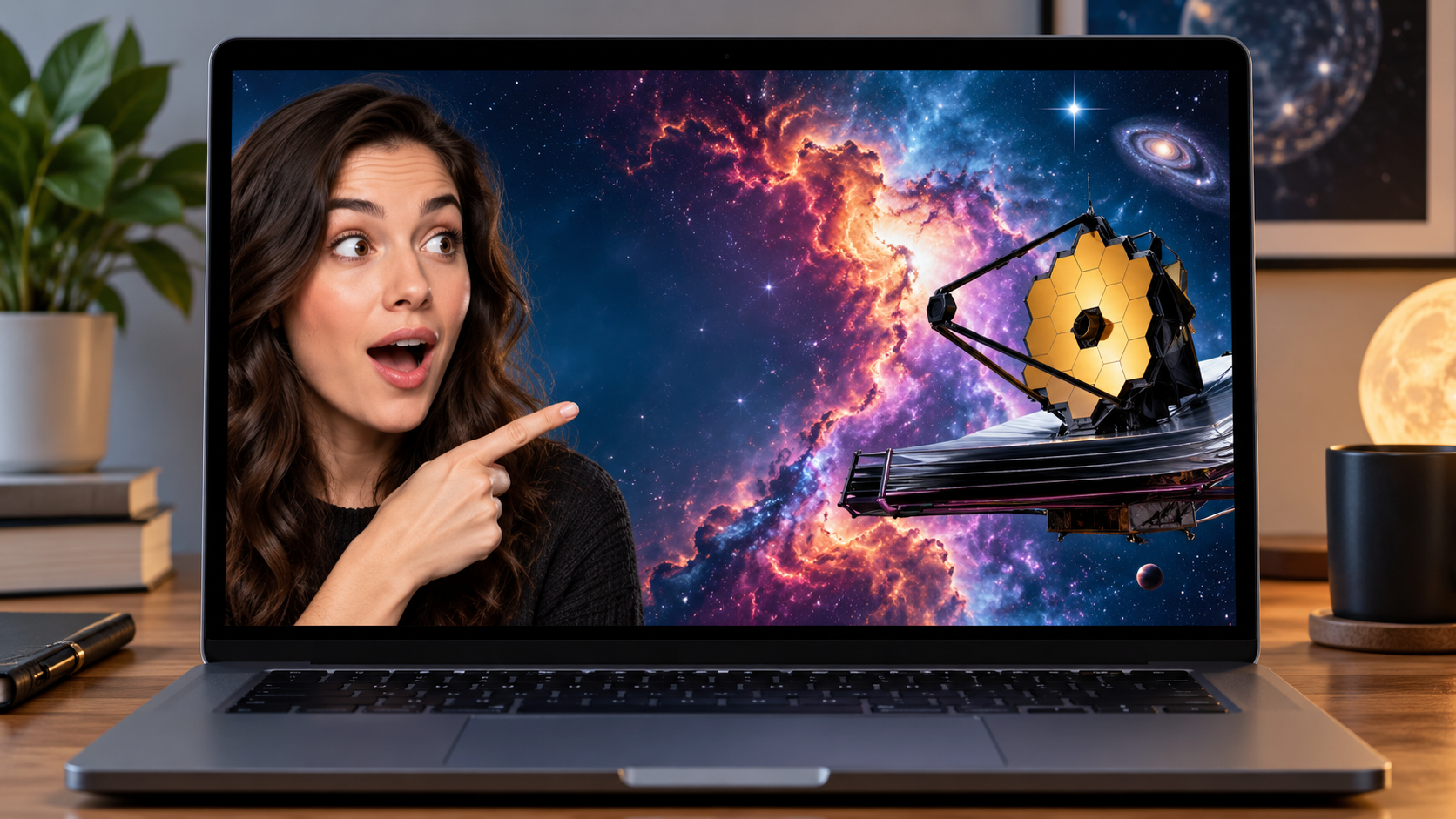
A YouTube thumbnail is a promise about the video. A design can earn a click and still harm the channel if the promised scene, result, or reaction never appears. The useful task is to make one accurate visual hook that survives a small phone preview, then compare it with a second version after you have enough viewer data.
This guide starts in Quby Thumbnail Creator, whose public page describes YouTube templates, editable text and colors, and variations. It finishes with YouTube's current custom-thumbnail guidance. Quby's marketing examples are ideas, not evidence that a particular thumbnail will improve your click-through rate. The steps below focus on an honest design decision you can review yourself.
Write the thumbnail promise before opening a template
Summarize the video in one sentence: "I compare three low-cost microphones in the same room and show which one handles fan noise best." Underline the one visual proof a viewer will see: the microphones side by side, a waveform from the same test, or the real recording setup. Do not show a winner you have not measured. If the title says "best microphone for a noisy room," the video must explain the test, not merely unbox products.
Choose one focal point. A tutorial might show a face reacting to a real before-and-after frame; a product comparison might show two devices and a clear difference. Avoid cramming a full sentence, five arrows, several emojis, and a tiny logo into a 16:9 frame. The viewer sees the thumbnail at different sizes and sometimes against a dark interface. A short phrase can support the image, but it should not repeat the entire title.
Make a small asset pack: one frame from the finished video, a rights-cleared portrait if a face helps explain it, an approved brand color, and the exact spelling of any short text. A real frame ties the promise to the actual content. If you use an AI-generated illustration, label the video honestly where needed and avoid presenting the illustration as a photographed result.
Compose a first version in Quby
Open Quby Thumbnail Creator and sign in if requested. Choose a YouTube video layout shown in your account. The public tool page advertises a 16:9 YouTube template and controls for text, positioning, colors, and backgrounds. Check the live editor for the available export dimensions and terms before committing to a design.
Place the subject where it is easy to recognize. If a face is included, keep its expression true to the video; do not fabricate a reaction for a serious explanation. Keep the most important object large enough to identify at a glance. Leave space for text that does not cross the object. Use high contrast for the short phrase, then simplify the background so the phrase and subject do not fight for attention.
For the microphone example, one useful concept is a close photograph of the three tested microphones and the short line "FAN NOISE TEST." A second concept could show the actual noisy-room setup with a single mic in the foreground. Neither claims a winner before the video establishes one. Save each version with a clear name so you can compare the same underlying video, not two different topics.
Run a phone-size and truth check
Shrink the image to roughly the size it will appear in a mobile feed. Can you read the phrase without zooming? Can you tell what the object is? Does the design still work if the title below it is cut short? If not, remove elements before increasing text size. A good hierarchy usually has one subject, one supporting phrase, and one accent color.
Now ask a stricter question: "Where in the video can I find what this image promises?" If the thumbnail shows an exact before-and-after result, the video should show that comparison. If it shows a surprised person, that person should actually be part of the story. Avoid invented screenshots, false price tags, fake platform controls, or a synthetic endorsement. Accurate packaging builds trust beyond a single click.
Check the exported file as an image. YouTube currently recommends a 16:9 thumbnail for standard videos, a sufficiently large resolution, and JPG or PNG among accepted formats. Its custom-thumbnail help page also explains verification, upload steps, device-specific file limits, and how Shorts thumbnails differ. Read it when you upload because these requirements can change. Do not rely on an older "1280 × 720 only" rule if YouTube's live guidance has moved on.
Compare variants without inventing a result
Quby's public page suggests making multiple versions. That is useful only if each variant tests one idea. Keep the video title and publish timing stable when you can, and change one element such as face scale, short phrase, or background contrast. Record the actual version used and the period it ran. A click-through rate without impressions, audience source, or watch behavior is easy to misread. A higher click rate with viewers leaving immediately can signal a misleading promise rather than a better design.
If your channel lacks a native experiment feature, do not rapidly swap thumbnails and call it a controlled test. Traffic sources and timing shift. Instead, treat the comparison as directional, keep notes, and review watch time alongside clicks. Quby can help you prepare the variants; YouTube's own analytics are where you judge the published result.
For Shorts, check the separate section in YouTube's guidance. Its current page describes a different recommended shape and a desktop upload path for custom Shorts thumbnails. Do not reuse a wide video thumbnail without checking how it appears in the Shorts feed.
Bring a frame from the finished video to Quby Thumbnail Creator. Make one honest 16:9 concept, preview it at phone size, and check every claim against the actual video before uploading it to YouTube.
Sources: Quby Thumbnail Creator and YouTube custom-thumbnail guidance.
Ready to Create with AI?
Put these techniques into practice with Quby's professional AI creative tools.
Launch Creative Suite