How to Prepare a Clean Product Photo for a Marketplace Listing
Use Quby Background Studio to make a faithful product cutout, then check the export against marketplace image rules.
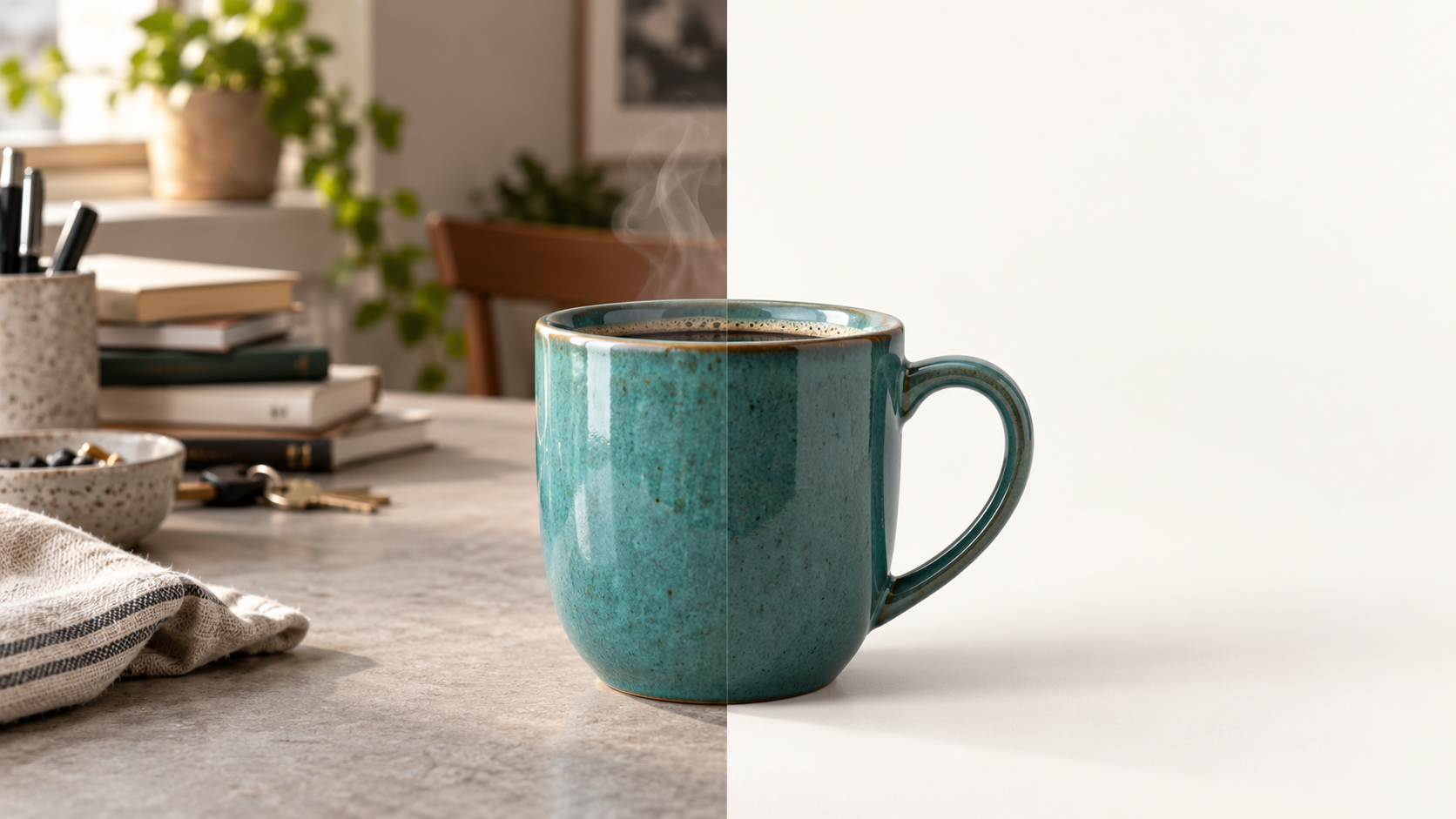
An online product image has a narrow job: show the exact item clearly enough that a shopper knows what will arrive. A dramatic generated room can make a useful campaign image, but it can also obscure the item or misrepresent the listing. For the main image, begin with a faithful photograph and change only the background that needs cleaning.
This guide uses Quby Background Studio to prepare a clean cutout, then checks it against Google Merchant Center's main-image rules. The public Quby page shows Remove, Replace, and Generate modes; exact account controls and processing terms should be checked in the studio before you start. The workflow below is a review method, not a claim that every generated edge will be perfect.
Decide which image you are making
Separate the main listing image from an additional lifestyle image. A main image should be an unobstructed view of the item being sold, without price banners, calls to action, or marketing copy. Google's image-link guidance describes requirements for the main image and allows alternate angles through additional-image links. It also cautions against misleading promotional overlays and gives current size and file limits. Read the policy for the channel where you will actually list the product; another marketplace may differ.
Create a one-line brief before editing: "The blue ceramic cup must retain its shape, glaze, handle, printed mark, and visible imperfections. Remove the kitchen clutter and place the cup on a plain light background." This identifies what is allowed to change. If your source photograph already makes the product look larger or a different color than it is, reshoot it. Background removal cannot repair a dishonest starting image.
Keep the original high-resolution photograph. Do not repeatedly export and re-import compressed versions. Use a photo with enough room around the product, an in-focus edge, and lighting that separates it from the surroundings. Transparent glass, fur, thin straps, and reflective metal deserve extra review because their edges carry real scene information.
Prepare the cutout in Quby
Open Background Studio's Remove workflow, sign in if required, and upload a product photo you have permission to use. The tool page describes PNG and JPG input for its public demo and a Remove mode for extracting the subject. Inspect the current upload limit and any credits in your account rather than assuming the marketing demo is identical to the signed-in editor.
Make one cutout first. View it at full size on a dark background and a light background. Look closely at the handle opening, the product's base, transparent areas, and the shadow where it touches the surface. A halo around a dark product on white is easy to miss in a small preview. If the product is part of a set, check that no accessory vanished. If an important edge is missing, return to the source photo or use a manual editor; publishing a false silhouette is worse than leaving a modest original background.
For a main-image candidate, use Replace only to add a simple neutral background that keeps the product readable. A generated countertop or studio set may be suitable for an additional lifestyle image, but do not let it imply that an accessory is included. Avoid generating labels, packaging, or a new side of the product. If you use Generate, write a background-only prompt such as:
Plain warm-white tabletop and wall, soft natural contact shadow, no props, no text, no additional products. Preserve the photographed cup exactly.
That prompt is a constraint, not a guarantee. Compare the result with the original. If the cup's color, handle, logo, or dimensions drift, discard it. You can keep the clean cutout and add a background using a conventional editor instead.
Check the file as a buyer and as a feed
Open the exported image on a phone-sized screen and ask whether the product can be identified immediately. Then zoom in: can you still read a printed mark that was visible in the source? Does the contact shadow look natural, or does the item float? Is the background uniform enough that a marketplace crop will not cut through a prop? These are practical quality checks, not invented performance claims.
Verify the actual exported pixel dimensions and file size. Google's image-link specification currently states a minimum of 500 × 500 pixels beginning January 31, 2027 and recommends larger images when possible. It also sets an upper file-size limit. Check the live guidance when submitting, because product-feed requirements change. An image upscaler can enlarge a small image, but it cannot prove that newly synthesized detail matches the real product.
Keep two named files: an untouched source and an approved listing export. Save the cutout separately if you plan to make lifestyle variations. Put the main image through your marketplace preview or diagnostic tool before replacing an existing live listing. If the preview crops the product awkwardly, adjust the composition rather than adding text or stretching the item.
Make lifestyle images without contaminating the main image
Once the plain version passes review, create one separate lifestyle variation. Quby's Replace or Generate mode can suggest a setting such as a desk, bathroom shelf, or kitchen counter. Keep scale believable: a cup should not become the size of a lamp. Avoid adding a second item that the buyer might think is included. If the generated scene introduces false product features, either edit the scene or use a real photo.
The two versions serve different purposes. The main image answers "what is this exact item?" The lifestyle image answers "how might it look in context?" Save that distinction in your file names and feed fields. For a product with regulatory or material claims, have the owner review every visual before publication.
If your photo already has a clean background, you may not need removal at all. Use Quby only where it solves a real defect. The fastest reliable workflow is one source photo, one restrained edit, and a comparison against the physical item.
Bring an approved source photo to Quby Background Studio, make one clean cutout, and review the product edges before using it in a listing. The final gate is the listing policy and the actual product, not the prettiness of the new background.
Sources: Quby Background Studio and Google Merchant Center image-link rules.
Ready to Create with AI?
Put these techniques into practice with Quby's professional AI creative tools.
Launch Creative Suite