YouTube AI Shorts Editing: A Practical Creator Workflow
YouTube announced a conversational Shorts editing assistant. Use this brief, prompt sequence, and review checklist to test it without losing control of the story.
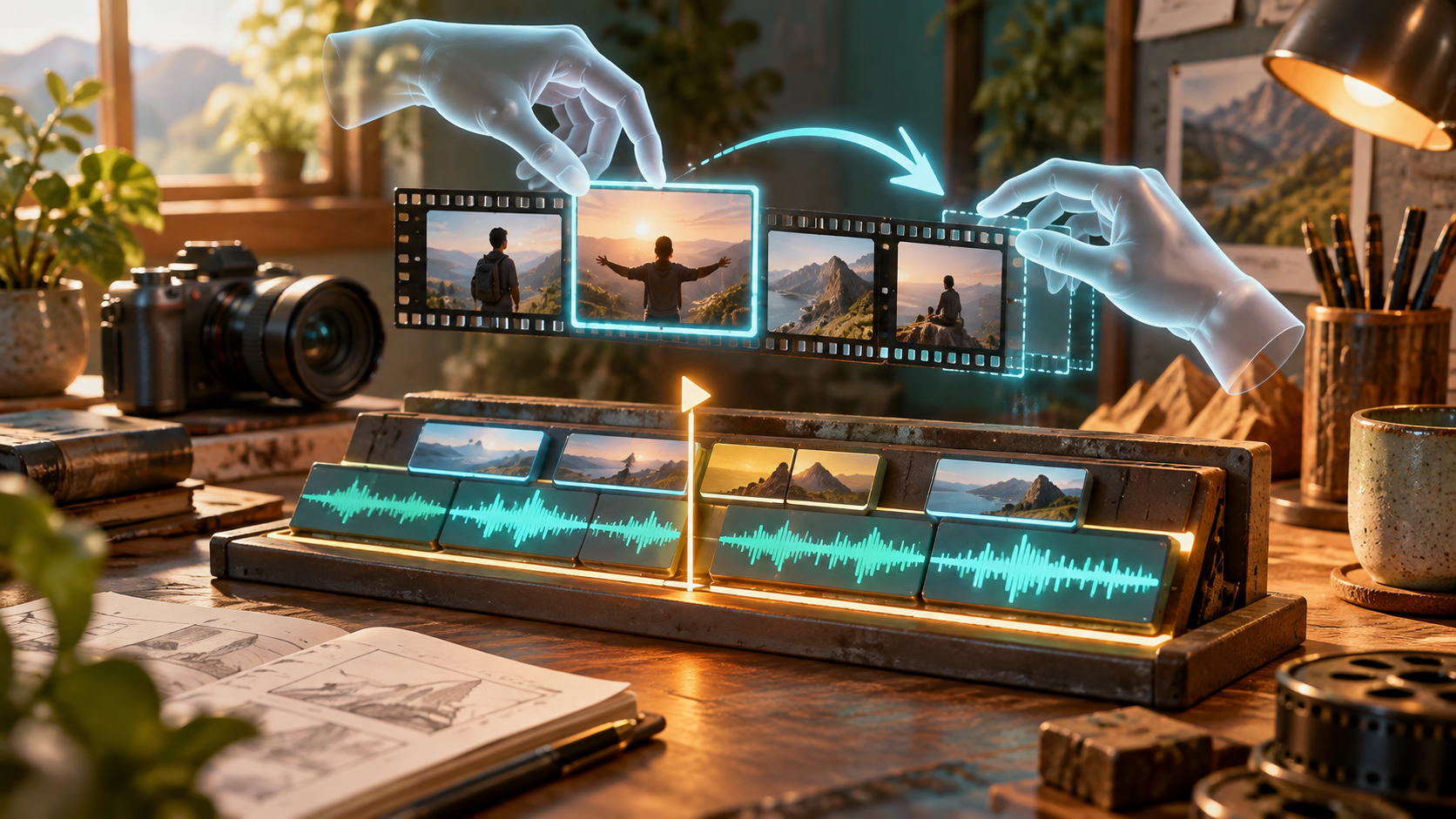
YouTube's Made On YouTube 2026 announcements put conversational editing directly in the path of Shorts creation. The company says it is integrating Gemini Omni into an editing assistant for Shorts and the YouTube Create app. Its examples are concrete: creators can ask the assistant to trim speech, sync music, add text hooks, and reorder frames. YouTube has announced the direction, but the public announcement does not give a universal availability date. Treat it as a workflow to prepare for, and verify the controls present in your own account before planning a deadline around them.
What changed for creators
Editing a short video usually involves a long series of small decisions. Which sentence starts the clip? Where does the music rise? Should the product shot arrive before or after the explanation? A conversational assistant can turn some of those decisions into instructions that are easier to revise. The useful change is the short path from a creative note to a candidate edit, followed by a human review.
The announced controls cover four common bottlenecks. Speech trimming can tighten a take without forcing you to cut every pause by hand. Music sync can align a beat with a reveal. Text hooks can give the first seconds a clear reason to keep watching. Frame reordering can test a new story sequence without rebuilding the entire timeline. These are editing operations, not evidence that an assistant understands your audience, your claims, or your brand.
Build an edit brief before opening the assistant
Start with a source clip and a one sentence goal. A useful goal names the audience, the action you want the viewer to take, and the information that must remain accurate. For example: "Show a small business owner how this design becomes a finished product, then invite them to watch the full tutorial." This makes the edit testable. You can ask whether the final clip communicates that sequence, rather than merely whether it feels fast.
Mark three moments in the source footage: the strongest visual, the sentence that explains the benefit, and the proof. Proof might be the finished graphic, the export, or the result of a product test. If one is missing, record it before editing. A prompt cannot make absent evidence real.
Create a small constraint list as well. Write down claims that cannot be shortened, words that must appear exactly, and shots that must stay in order. If the video demonstrates a paid feature, keep the price or eligibility language in the brief. If a client supplied footage, list any approval limits. The assistant can then propose edits inside a clear boundary.
A practical prompt sequence
Begin with structure rather than polish. Try: "Make a 25 second cut for a new viewer. Open with the finished result, then show the two steps that created it. Keep the sentence about limitations intact. Do not add claims or footage." Review the proposed order. Does the opening actually show the promised result? Can a person unfamiliar with the product follow the middle?
Next, ask for a speech pass: "Remove long pauses and repeated phrases, but preserve the speaker's meaning and natural rhythm. Show me each removed phrase before applying the cut." YouTube's announcement mentions speech trimming, but specific review controls may vary by release and account. If your editor cannot show a change list, compare the transcript before and after yourself. Read the final captions with the sound off; an edit that feels smooth by ear can leave a sentence fragment on screen.
Then try one hook, not five at once: "Add a short text hook in the first two seconds that describes the result without making a promise the video cannot prove." A hook like "One photo, three product layouts" is clearer than "You won't believe this." Keep it short enough for a phone screen. Test it against the first frame, because the words and picture should answer the same question.
Finally, request music sync around a specific event: "Place the main beat on the reveal of the finished design. Keep speech audible and let the last second breathe." Listen on a phone speaker and on headphones. If the beat makes the voice hard to hear, lower the track or skip it. Timing that looks precise on a timeline is still wrong when it competes with the message.
Compare two versions instead of endlessly prompting
Save a baseline cut before using any assistant. Make one assisted version and compare both using a short scorecard. In the first three seconds, can a viewer identify the topic? By the middle, is there visible progress? By the end, is the result or next step unmistakable? Check captions, speech meaning, product accuracy, and music levels separately. Do not let a faster edit win simply because it has more motion.
Ask one colleague to watch each version without context. Let them say what they think the clip promises and what happened. If their description differs from your brief, revise the story order. This is often more useful than asking whether they "like" the video. For a brand or paid campaign, use the same review checklist you would use for a manual edit. Human approval remains the last step before publication.
Where Quby can fit
The YouTube assistant is aimed at editing footage in its creator workflow. Quby can help at the earlier stage when you need to turn a concept into visual options. For instance, draft a product demonstration storyboard or generate alternate visual treatments in Quby's Video Studio, then bring selected assets into your edit only after checking that they match the claim and the platform's rules. Keep the original brief and source footage alongside every generated asset so the final story remains traceable.
The strongest use of conversational editing is a controlled experiment: one clear brief, one baseline, one assisted edit, and a specific review. That setup makes it easy to see whether the new tool saved time or improved the story. It also leaves you with a manual path when an announced feature is not yet available in your account.
Source: YouTube's official Made On YouTube 2026 overview and Google's event summary.
Ready to Create with AI?
Put these techniques into practice with Quby's professional AI creative tools.
Launch Creative Suite