Text to Vector SVG: The Complete AI Generation Guide
Generate scalable vector graphics from text descriptions. Create logos, icons, illustrations, and design assets that scale to any size without quality loss.
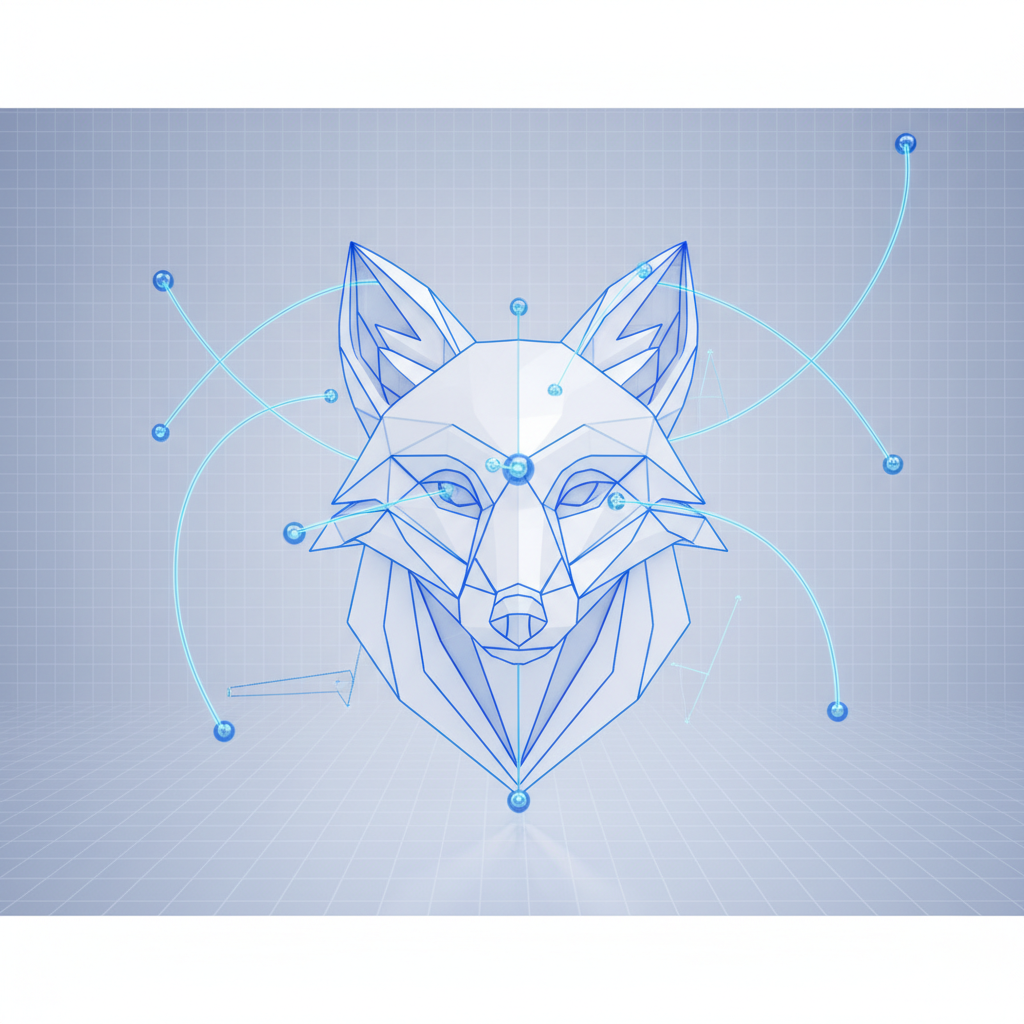
Why Vector Graphics Matter
Vector graphics (SVGs) scale infinitely without losing quality. Unlike raster images (PNG, JPG) that become pixelated when enlarged, vectors stay crisp at any size - from favicon to billboard.
When to Use Vectors vs Rasters
Choose Vectors For
- Logos and brand marks
- Icons and UI elements
- Illustrations and diagrams
- Print materials
- Animated web graphics
- Any design that needs multiple sizes
Choose Rasters For
- Photographs
- Complex textures
- Photo-realistic renders
- Screenshots
AI Vector Generation with Recraft V4
Quby integrates Recraft V4, the most advanced AI vector generation model available. It produces clean, production-ready SVGs from text descriptions.
Supported Styles
Flat Illustration
Clean shapes with solid colors. Perfect for modern UI and marketing materials.
Line Art
Elegant outlines with minimal fills. Great for editorial and documentation.
Detailed Illustration
Complex artwork with gradients and shading. Suitable for hero images and featured graphics.
Icon Style
Simplified, uniform designs for icon sets and UI elements.
Writing Effective Vector Prompts
Do's
- Describe shapes and forms explicitly
- Specify style (flat, gradient, line art)
- Mention intended use (logo, icon, illustration)
- Include color preferences
- Specify simplicity level
Don'ts
- Don't request photorealistic content
- Avoid overly complex scenes
- Don't mix too many styles
Example Prompts
Logo: "Minimalist owl logo, geometric shapes, single color, professional, flat design"
Icon: "Settings gear icon, outline style, rounded corners, uniform stroke width"
Illustration: "Mountain landscape illustration, flat design, pastel colors, layered depth"
SVG Output Quality
Path Optimization
AI-generated vectors include optimized paths with minimal anchor points for smaller file sizes.
Clean Groups
Elements are logically grouped for easy editing in design tools.
Standard Compliance
Output SVGs are valid and render consistently across all browsers and design software.
Post-Generation Workflow
Editing in Design Tools
Import SVGs into Figma, Illustrator, or Inkscape for further refinement.
CSS Styling
SVGs can be styled with CSS for interactive web applications.
Animation
Add motion with CSS animations, GSAP, or Framer Motion for engaging web experiences.
Using Vectors in Spaces
In Quby's Spaces workflow builder, use the Vector Generator node:
- Add a Vector Generator node to your canvas
- Select Recraft V4 and choose your style (Flat, Detailed, etc.)
- Connect a Text Input node with your prompt
- Connect the output to other nodes or an Output node
Practical Applications
Brand Identity
Generate logo variations, icon sets, and brand illustrations in a consistent visual language.
Web Development
Create inline SVGs for fast-loading, responsive websites.
Print Design
Generate illustrations and graphics for brochures, business cards, and signage at any resolution.
Start Generating Vectors
Open Quby's Image Editor, select Recraft V4 as your model, choose a vector style, and start creating scalable graphics. Or add a Vector Generator node in Spaces for automated pipeline generation.
Ready to Create with AI?
Put these techniques into practice with Quby's professional AI creative tools.
Launch Creative Suite