From Text to Tangible: Your 2026 Guide to Free AI 3D Models for 3D Printing with Quby
In 2026, AI transforms
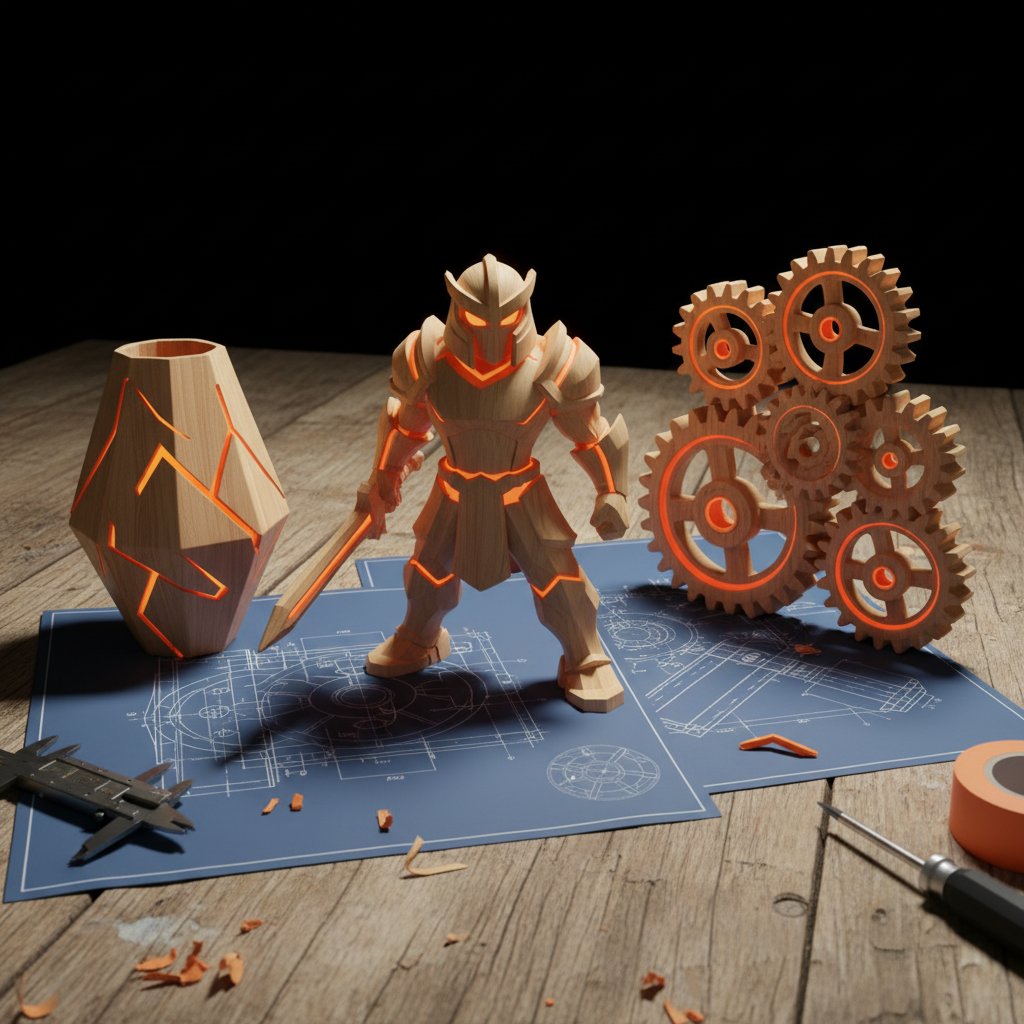
The 2026 Revolution: Text-to-3D AI for Everyone
Remember those clunky 3D modeling programs? The ones with a bazillion buttons and menus that made you feel like you needed a degree in rocket science just to sculpt a simple cube? Yeah, those days are pretty much history, especially here in 2026. What was once a niche skill, reserved for digital artists and engineers with expensive software, is now something almost anyone can do. We're talking about a genuine revolution, and it's powered by AI.
Imagine typing a few words, simple descriptive sentences, and watching as a complex, ready-to-print 3D object springs to life right on your screen. That's the magic of text to 3d model ai, and it's not some futuristic fantasy anymore. It's happening now, and it's become surprisingly sophisticated. This technology has thrown open the doors to creativity for so many people. You don't need years of training or a hefty budget for licenses. You just need an idea, and a good ai 3d generator can take it from there.
Why is this such a big deal, you ask? Well, for starters, it democratizes design. Suddenly, the barrier to entry for creating custom objects is incredibly low. Hobbyists can design their own board game pieces, cosplayers can generate unique props, and small businesses can prototype products without hiring expensive designers. Students can visualize complex scientific concepts with physical models generated in minutes. It's a massive leap forward for accessibility, allowing pretty much anyone to create 3d models free or at a very low cost.
This isn't just about making things easy, though. It's about unlocking entirely new ways to interact with digital creation. Think about how much simpler it is to describe what you want rather than trying to build it from scratch with polygons and vertices. The AI understands context, style, and intent in ways previous generations of software never could. It learns from vast datasets of existing 3D models and textures, allowing it to interpret your text prompts with surprising accuracy and creative flair.
Where does Quby fit into all this? Quby is one of the leading examples of an ai 3d generator that puts this incredible power directly into your hands. It's built from the ground up to make the process intuitive and fun, letting you focus on the vision rather than getting bogged down in technicalities. What used to take hours of manual sculpting and CAD work can now be achieved in minutes, sometimes even seconds. That's a significant shift in how we approach physical design. It truly is a new era for anyone who wants to turn a thought into something tangible. The best part? The technology keeps getting better, faster, and more imaginative. We're truly just getting started.
Getting Started: Generating Your First 3D Model with Quby's AI
Alright, let's stop talking about the future and start building it, shall we? You're probably itching to try this text to 3d model ai magic for yourself. The good news is, getting started with Quby is remarkably straightforward. It's designed to be user-friendly, even if you've never touched a 3D modeling program in your life.
First things first, you'll want to head over to quby.app. You'll likely need to create a free account, which usually takes about 30 seconds. Just a quick email and password, nothing complicated. Once you're in, you'll be greeted by an interface that's clean and inviting, not overwhelming. This is where the fun begins.
You'll spot a prominent text box, often labeled something like "Enter your prompt here" or "Describe your model." This is your command center, the place where you'll tell the quby 3d generator exactly what you want it to build. Don't overthink your first prompt. We're just trying to get our feet wet.
Let's try a simple example. How about something basic, yet visually interesting?
Prompt: "A small, cute robot with big eyes and tank treads, made of shiny blue plastic."
Type that in. No need for fancy jargon or complex sentences. Just clear, descriptive language. Once you hit the "Generate" button (or whatever it's called on the Quby interface), the AI springs into action. What's happening behind the scenes is fascinating. The ai 3d generator is processing your words, breaking them down into concepts, and then comparing them against its vast internal knowledge of shapes, forms, textures, and object relationships. It's essentially "imagining" the robot you described.
It usually takes a few moments. The exact time depends on the complexity of your prompt and the current load on the system, but it's generally quick. Then, poof, your first 3D model appears! You'll probably see a rendered image of it first, maybe even a rotatable preview. Take a moment to admire your creation. Pretty cool, right?
You'll likely have options to view your model from different angles, zoom in, and maybe even apply some basic lighting effects. This initial viewing stage is important. It lets you check if the AI understood your prompt, if the proportions look right, and if the overall aesthetic matches your vision. If it's not quite what you pictured, don't worry. That's part of the process, and we'll cover how to refine your prompts in the next section. The goal here is just to see that initial output and understand the fundamental workflow. You've just gone from zero to a 3D model with nothing but a few words. That's a powerful start.
Crafting Perfect Prompts: Tips for Optimal 3D Printing Results
Okay, you've made your first model, and you've seen the potential. Now comes the exciting part: learning how to truly master the text to 3d model ai process. This isn't just about getting any model; it's about getting the perfect model, especially if you're planning on 3d printing from text. Crafting effective prompts is where the art meets the science, and it can make all the difference between a passable digital design and a stunning physical print.
Think of the AI as a super-talented, but slightly literal, apprentice sculptor. It can create amazing things, but it needs clear, precise instructions. Here are some key strategies to get the best results:
1. Be Specific, Not Vague: "A dog" is a bad prompt. "A playful golden retriever puppy, sitting, with floppy ears and a wagging tail, fur texture visible" is much better. The more details you provide about the subject, its pose, its expression, its features, and its context, the closer the AI will get to your vision.
2. Describe Materials and Textures: The AI isn't just generating shape; it's also interpreting how that shape looks. Specify materials. Do you want "shiny metal," "rough stone," "smooth plastic," "wooden grain," "velvet fabric"? These details greatly influence the visual output and can help the AI understand the physical properties you're aiming for. For example, "a sturdy ceramic mug with a smooth glaze" is more effective than just "a mug."
3. Use Adjectives and Adverbs Wisely: Words like "intricate," "minimalist," "futuristic," "rustic," "chunky," "delicate," "asymmetrical," "symmetrical" all add important stylistic cues. "A sleek, minimalist lamp design" will yield a very different result from "a rustic, hand-carved wooden lamp."
4. Consider the Style:
Do you want a "cartoon style," "realistic," "sci-fi," "fantasy," "abstract," "gothic," "steampunk"? Explicitly state the artistic style you're aiming for. This gives the ai 3d generator a strong directional hint.
5. Define the Environment or Context: Sometimes, describing where the object exists helps the AI understand its form and purpose. "An ancient weathered stone statue of a lion, partially overgrown with moss" is stronger than just "a lion statue."
6. Think About 3D Printing Constraints Early:
This is absolutely crucial if your end goal is 3d printing from text. AI-generated models can sometimes have features that are difficult or impossible to print without significant post-processing.
- Thin Walls/Small Details: The AI might generate incredibly delicate features. If you're using FDM printing, ensure your prompt accounts for minimum wall thickness (e.g., "a sturdy, thick-walled vase" instead of "a delicate vase").
- Overhangs: Large overhangs without support structures are a printer's nightmare. If you're designing something with a lot of horizontal extension, consider how it will be supported during printing, or prompt for a design that naturally minimizes overhangs (e.g., "a vase with a gently tapering top" rather than "a vase with a wide, flat lip").
- Non-Manifold Geometry: Sometimes AI can create models that aren't "watertight" or have intersecting geometry, which slicers don't like. While Quby often cleans these, aiming for simple, solid forms initially can help. You can specify "a solid, closed model" in your prompt.
- Internal Structures: If you need specific internal structures or hollow spaces, you'll need to prompt for them explicitly. "A hollow sphere with an internal lattice structure."
7. Use Negative Prompts (If Available):
Some ai 3d generator tools, including advanced versions of Quby, offer a "negative prompt" feature. This is where you tell the AI what not to include. For example, if your robot keeps getting wheels when you want treads, you could add a negative prompt: "no wheels, no arms, no wires." This is a powerful way to steer the AI away from unwanted elements.
8. Iterate, Iterate, Iterate: Don't expect perfection on your first try. It's an iterative process. Generate a model, review it, identify what's not quite right, and then refine your prompt. Maybe you need to add a detail, remove a word, or change an adjective. It's like having a conversation with a creative partner. You guide it, and it responds.
Example of Prompt Evolution:
- Initial Prompt: "A sword." (Too vague, probably generic.)
- Improved Prompt: "A medieval knight's longsword, polished steel blade, ornate hilt with leather wrap, golden pommel with a ruby gem, realistic style." (Much better, but maybe too fragile for printing.)
- Print-Optimized Prompt: "A sturdy, thick-bladed medieval knight's longsword, smooth, polished steel texture, simple, ergonomic hilt with textured grip, solid pommel, designed for 3D printing." (Focuses on printability and omits delicate details that might break.)
The more you experiment, the better you'll get at understanding how the AI interprets your words. It's a skill worth developing because it unlocks so much creative power.
From Digital Design to Physical Print: Exporting and Preparing Your Model
You've used the quby 3d generator to create an amazing 3D model. It looks fantastic on your screen, but the real thrill is holding it in your hands. This is where the digital design makes the leap to a physical object through 3d printing from text. But before you hit "print" on your 3D printer, there are a few crucial steps to ensure a successful print.
1. Exporting Your Model
Once you're happy with your generated model in Quby, you'll need to export it. Most ai 3d generator tools, including Quby, will offer common 3D file formats suitable for printing. The most common ones are:
- STL (.stl): This is the industry standard for 3D printing. It represents the surface geometry of a 3D object using a collection of connected triangles. It's simple, widely supported, and usually what you'll want.
- OBJ (.obj): This format can store more information than STL, including color and texture data, though often for printing, you only care about the geometry. If your model has complex colors you want to preserve for rendering, OBJ might be an option, but for simple monochrome prints, STL is king.
- GLB (.glb) or GLTF (.gltf): These are newer formats, great for web-based 3D and AR, as they are compact and can include textures and animations. Some advanced slicers can handle them, but STL is still the safest bet for most consumer 3D printers.
For 3d printing from text, always aim for STL first. It's universally compatible with slicing software.
2. Slicing Your Model
Exporting your model is just the first step. Your 3D printer doesn't understand an STL file directly. It needs specific instructions on how to build the model layer by layer. That's where slicing software comes in.
Popular slicing programs include:
- Cura: Very popular, supports many printers, lots of features.
- PrusaSlicer: Excellent for Prusa printers, but also supports many others. Known for quality.
- Simplify3D: A commercial option, known for advanced control.
- MatterControl: Open-source and versatile.
You'll import your exported STL file into your chosen slicer. This software then "slices" your 3D model into hundreds or thousands of thin horizontal layers, generating a G-code file. This G-code file contains all the instructions your 3D printer needs: where to move, how much plastic to extrude, at what temperature, and how fast.
3. Key Slicing Settings for Success
Getting your slicing settings right is critical. Here are the most important ones to pay attention to:
- Layer Height: This determines the thickness of each layer. Thinner layers (e.g., 0.1mm) result in higher detail and smoother surfaces, but take longer to print. Thicker layers (e.g., 0.2mm or 0.3mm) print faster but show more prominent layer lines. Choose based on your model's detail and your patience.
- Infill: This refers to the internal structure of your print. A 100% infill means a solid object, which is very strong but uses a lot of material and time. For most models, 10-20% infill with a honeycomb or grid pattern is sufficient to provide strength without excessive material use.
- Supports: If your
text to 3d model aicreation has overhangs (parts of the model that extend horizontally without anything underneath), you'll need supports. These are temporary structures printed by the slicer that hold up the overhangs and are removed after printing. Make sure to enable them if needed, and consider the "support placement" (everywhere, touching build plate) and "support density." - Rafts, Brims, or Skirts: These are options to help your print stick to the print bed:
- Skirt: A line drawn around the object on the first layer, helping to prime the nozzle.
- Brim: A few extra outlines printed directly attached to the base of your model, increasing its contact area with the bed for better adhesion, good for tall, thin objects.
- Raft: A base layer printed underneath your entire model, separating it from the print bed. Good for models with small footprints or tricky adhesion.
- Print Speed: Faster speeds save time but can reduce print quality, especially for detailed models. Slower speeds improve quality.
- Nozzle and Bed Temperature: These depend on your filament type (PLA, PETG, ABS, etc.). Always refer to your filament manufacturer's recommendations.
4. Troubleshooting Common Issues
Even with ai 3d generator models, issues can arise.
- Non-Manifold Edges/Holes: Sometimes, AI can create "bad" geometry that isn't fully enclosed. Your slicer might warn you or refuse to slice. Many slicers have "repair model" functions, or you might need to use a dedicated mesh repair tool (like MeshMixer or 3D Builder) before slicing. Or, go back to Quby and try a slightly modified prompt that aims for "solid" or "watertight" models.
- Model Too Thin/Fragile: If your
text to 3d model aioutput looks flimsy, your printer probably won't be able to handle it. You might need to scale up the model in the slicer, or, even better, go back to your prompt and add adjectives like "sturdy," "thick-walled," or "chunky" to encourage the AI to create a more solid design. - Complex Details Don't Print: Extremely fine details, like thin hairs or delicate filigree, might be beyond your printer's resolution. Adjust your prompt to simplify these areas, or accept that some details will be lost.
Once you've got your settings dialed in, the slicer will generate the G-code. Save this to an SD card or transfer it via Wi-Fi to your printer, and you're ready to print! Seeing your digital design manifest into a physical object is incredibly rewarding.
Beyond the Basics: Advanced Applications and the Future of AI 3D Modeling
You've dipped your toes in the water, generated some cool stuff, and maybe even printed your first text to 3d model ai creation. But let's be honest, we've barely scratched the surface of what's possible with this technology, especially as it continues to grow.
Think beyond simple statues or trinkets. We're talking about complex assemblies. Imagine designing a functional custom enclosure for a Raspberry Pi just by describing its dimensions and desired aesthetic, or generating parts for a miniature robot you're building. Architects are starting to use ai 3d generator tools for rapid conceptual modeling, instantly visualizing building ideas from textual briefs. Product designers can quickly iterate through dozens of design variations for a new consumer gadget, drastically speeding up the prototyping phase.
Personalization is a huge area. Want a custom action figure of your pet in a superhero costume? Easy. Need a unique gift with a personalized emblem? No problem. The ability to create 3d models free or cheaply means that bespoke, one-of-a-kind items are no longer an expensive luxury. This opens up entirely new markets for creative entrepreneurs and makes personal projects infinitely more achievable.
In education, this technology is a dream come true. Teachers can generate custom teaching aids for biology (a detailed skeletal system), history (ancient artifacts), or physics (complex mechanical gears) on the fly. Students can bring their creative writing to life by generating scenes or characters they've invented. This kind of interactive, tangible learning experience is incredibly powerful.
What about the future? Oh, it's bright. We're already seeing hints of AI models that can take a 2D image and convert it to 3D, or even reconstruct 3D environments from video. Imagine pointing your phone at a room and having the AI generate a 3D model of its contents, ready for you to remix or print. Future ai 3d generator systems will likely be even more intuitive, perhaps allowing for real-time adjustments as you speak, or suggesting design improvements based on your expressed intent and common 3d printing from text best practices. We might even see AI-generated models that can self-correct for common printing errors before they even leave the digital canvas.
There are important conversations to be had, too. Questions around copyright for AI-generated works, originality, and the potential for misuse will continue to shape the legal and ethical landscape of this technology. But don't let those big questions overshadow the sheer creative liberation this technology offers.
The ability to create 3d models free from a simple text prompt isn't just a party trick. It's a foundational shift in how we approach design, manufacturing, and creative expression. The only real limit now is your imagination, and maybe how much filament you have in your cupboard.
Ready to turn your wildest ideas into tangible objects? Head over to quby.app and try generating your first AI 3D model today. You'll be amazed at what you can create with just a few words.
Ready to Create with AI?
Put these techniques into practice with Quby's professional AI creative tools.
Launch Creative Suite