How to Supercharge Your 2026 AI Creative Workflow with Quby's Image Editor
Unlock the full potential of AI creativity in 2026 with Quby's advanced image editor-turn bold ideas into stunning visuals faster than ever.
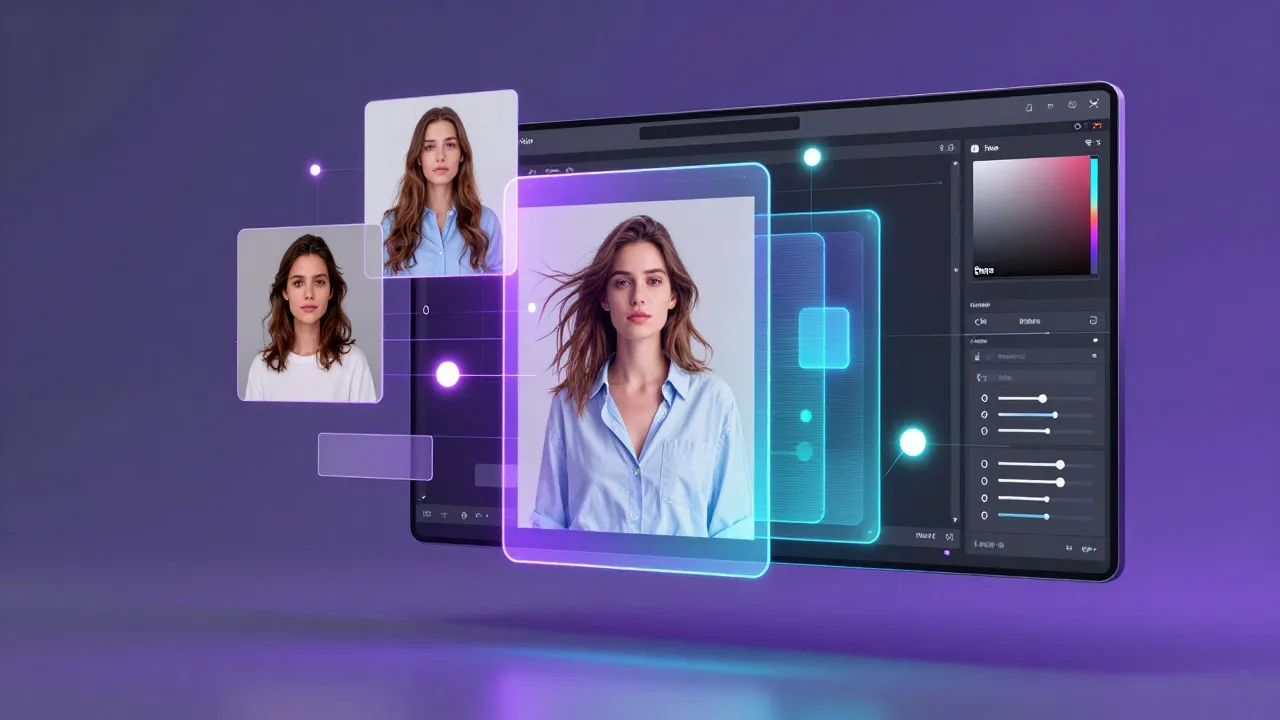
Introduction to Creative AI Workflows in 2026
It's hard not to marvel at how far we've come. In just a few short years, AI has transformed creative workflows from a niche experiment to an essential toolkit for designers and content creators. Now, in 2026, the landscape feels like a sci-fi movie come to life-except it's very real, and it's making our jobs a whole lot more fun.
The AI models you're probably seeing everywhere-like Gemini 2.5 or FLUX 1.1-are insanely powerful. They can dream up everything from hyper-realistic portraits to surreal landscapes in seconds. But here's the kicker: if you're just feeding prompts to these models and calling it a day, you're barely scratching the surface. Taking your AI creative workflow to the next level means pairing these models with tools that let you fine-tune, customize, and perfect your visuals. That's where Quby's Image Editor steps into the spotlight.
Whether you're a designer crafting intricate brand assets or a content creator churning out killer visuals for social media, Quby helps bridge the gap between "AI-generated" and "oh-wow-this-looks-human-made." Let's dive in.
Why Designers and Content Creators Need AI-Powered Image Editing
Picture this: you've just run a prompt through Gemini 2.5. It spits out an almost-perfect image-a compelling blend of your concept and the AI's creative interpretation. But almost perfect isn't enough, right? Maybe the colors clash with your branding, or the proportions feel off. Maybe it's missing something that would make it pop on your Instagram grid.
That's the tricky part about relying solely on generative AI. While these models excel at creating visuals, they don't always nail the nuances. And as any designer or content creator knows, it's the small tweaks-the ones most people don't even notice-that make a design go from "meh" to magnificent.
This is where AI-powered image editing tools come in. They let you take those raw AI creations and polish them to perfection. Instead of spending hours wrestling with manual edits, you get to focus on the fun creative stuff, while AI handles the heavy lifting.
Quby's Image Editor is a game-changer here. (Oops, not supposed to say "game-changer," but you get the point.) It combines latest AI capabilities with intuitive controls, giving you the power to edit faster, smarter, and, honestly, better than ever. Let's look at why Quby might just become your new favorite creative assistant.
How Quby's Image Editor Stands Out Among Top 2026 AI Tools
In 2026, creative tools are everywhere. You've got FLUX 1.1 for photorealistic compositions, Grok Imagine for abstract artistry, and Gemini 2.5 for fine detail. The competition is fierce, and you might be wondering: why should you bother with Quby's Image Editor when these big names exist? Here's why.
1. "Fix it, but keep the vibe."
Ever tried to adjust an AI-generated image, only for it to lose its original charm? Yeah, it's frustrating. Quby's Image Editor tackles this by letting you refine specifics-like lighting, sharpness, or texture-without compromising the overall aesthetic. It's like nudging an artist without taking the brush out of their hand.
2. Smart layering.
Remember old-school Photoshop layering techniques? Quby takes this concept into the AI realm. You can isolate parts of an image, edit just those areas, and preview it live. Want the sky to be moodier but keep that happy-go-lucky vibe in the foreground? Easy.
3. Built-in AI tweaks.
Quby isn't just an editing tool-it's a creative collaborator. The "AI Assist" feature suggests edits based on what's already in the image. For example, it might recommend smoothing out harsh shadows or enhancing focal points to make your design pop.
4. Speed without compromise.
Creative work often comes with tight deadlines. Quby's processing power is designed for the modern speed-of-thought workflow. It renders changes in seconds, letting you iterate faster and finish stronger.
Step-by-Step Guide to Creating Stunning Visuals with Quby
Ready to see Quby's Image Editor in action? Here's a step-by-step guide to creating visuals that turn heads. Whether you're a beginner or a seasoned pro, you'll find these steps ridiculously easy.
Step 1: Generate your base image
- Fire up your favorite AI model (say, Gemini 2.5 or Grok Imagine) to generate the initial image.
- Export the image and open it in Quby's Image Editor.
Step 2: Identify areas for refinement
Take a moment to evaluate what needs tweaking. Is the composition slightly off-balance? Are the colors too flat or overly vibrant? Don't rush this part-it's where the magic begins.
Step 3: Use Quby's Smart Tools
- Adjust lighting: Use the Light Drift tool to create realistic shadows or highlights.
- Enhance detail: Zoom into areas like textures or edges, and sharpen them using FineTouch controls.
- Color corrections: If the palette feels off, Quby's ShadeFlow feature lets you tweak colors individually or shift the entire tone.
Step 4: Add finishing touches
Want to add text overlays, blend another AI-generated layer, or crop for social media formats? Quby's built-in tools make it easy. Plus, the "AI Suggest" button can offer ideas you may not have thought of.
Step 5: Export and shine
When you're happy with the result-though, let's be honest, you'll probably be tempted to keep tweaking-export your design directly at the desired resolution. Done.
Comparing Quby with Gemini 2.5, Grok Imagine, and FLUX 1.1
Let's be real-there's no such thing as a one-size-fits-all tool in 2026. The right tool depends on your workflow. Here's a quick comparison to help you see where Quby's Image Editor stacks up.
Gemini 2.5
- Best for: Generating hyper-detailed visuals
- Downside: Limited post-editing tools
- How Quby complements: Gemini creates beautiful foundations, and Quby helps polish them to perfection.
Grok Imagine
- Best for: Abstract and artistic designs
- Downside: Sometimes unpredictable
- How Quby complements: Use Grok to get wild ideas, then refine them with Quby's precise tools.
FLUX 1.1
- Best for: Photorealistic renders
- Downside: Can feel too "stock photo" at times
- How Quby complements: Add personality and custom flair to photorealistic designs.
The bottom line? These AI models are fantastic, but they're like raw ingredients. Quby is the chef that turns those ingredients into Michelin-star-worthy creations.
Ready to Transform Your AI Creative Workflow?
It's safe to say that AI isn't replacing designers or creators-it's empowering us. Tools like Quby's Image Editor take the potential of AI and make it practical, intuitive, and endlessly creative. Whether you're adjusting an image from FLUX 1.1 or refining details from Grok Imagine, Quby gives you the control you need to make your work shine.
Give it a spin and see what it can do. Your 2026 creative workflow deserves to be smarter, faster, and, most importantly, more fun. Try Quby now.
Ready to Create with AI?
Put these techniques into practice with Quby's professional AI creative tools.
Launch Creative Suite