Nano Banana Pro Prompt Guide for Creator Ready Image Sets
Nano Banana Pro is useful when you treat the prompt like a compact art brief, not a wish list. This guide shows how to plan text, references, layout, and review criteria before you generate.
Nano Banana Pro Prompt Guide for Creator Ready Image Sets
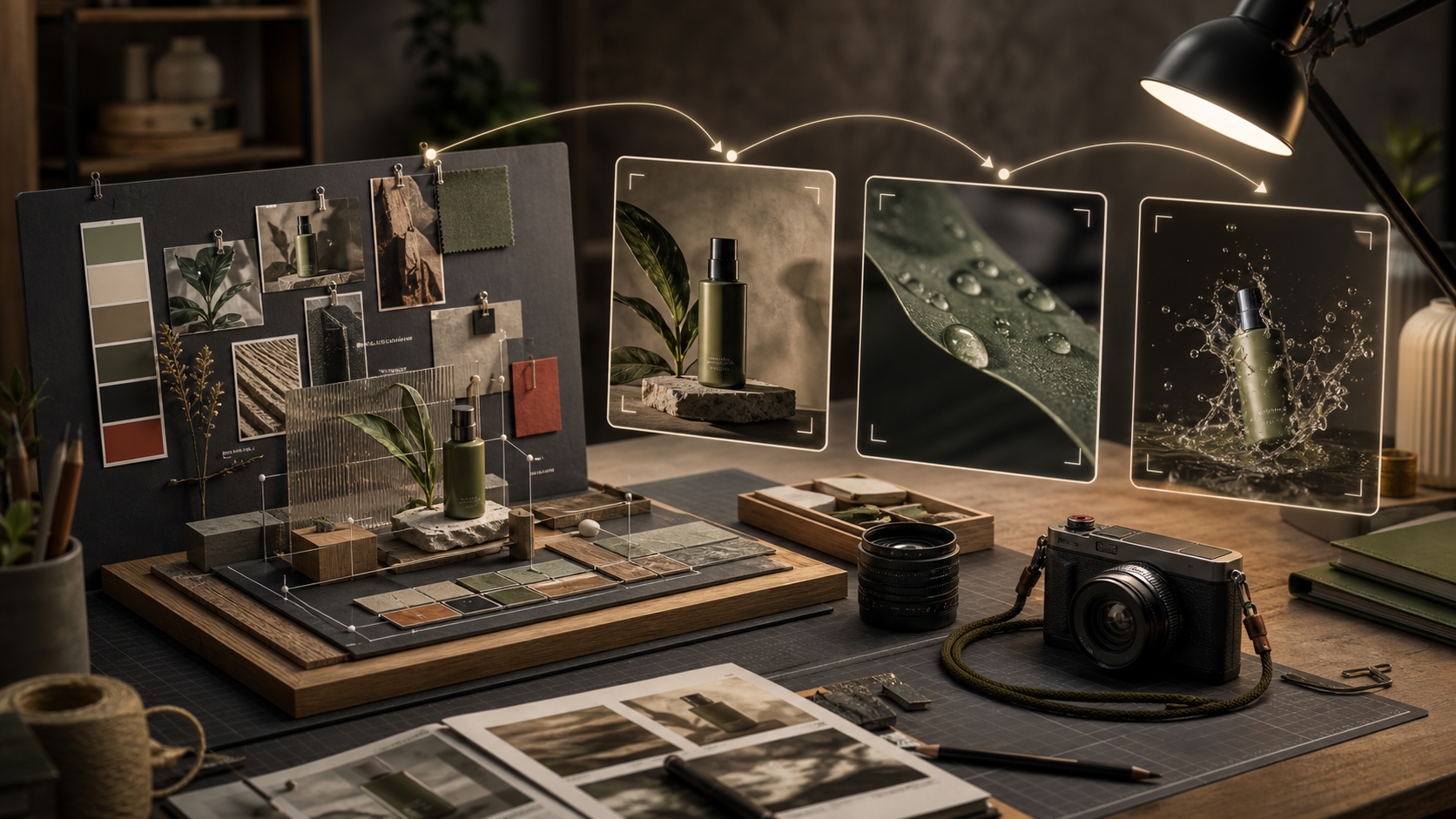
Nano Banana Pro is a useful trend for creators because it moves image prompting closer to production planning. The recent Replicate source hook points to three practical strengths: better text handling, stronger reading of input images, and more control when references need to stay consistent. That does not mean every prompt should become longer. It means the prompt should carry clearer decisions. The best use is not making one impressive image and hoping it fits later. Plan a small set: a hero frame, a thumbnail frame, a product detail, and a clean image that can become a video reference. In Quby, that kind of planned set can move from image generation into Video Studio without losing the purpose of the shot.
Start With The Output Job
Before writing a visual prompt, name what the image needs to do. A model with better text and reference understanding can still produce the wrong result if the job is vague. Good output jobs sound like this:
- Product hero image for a landing page
- 16:9 thumbnail background with no text baked in
- Poster mockup with exact headline text
- Character reference frame for an image to video prompt
- Social ad concept with product, setting, and offer clearly separated Weak jobs sound like this:
- Make it amazing
- Make it viral
- Make a premium product shot
- Make a cool poster The weak versions describe taste. The strong versions describe use. A usable image has a job, a crop, a subject priority, and a review test.
Use A Five Block Prompt
Use five blocks when the image needs to be accurate: job, subject, layout, text, and constraints. This keeps the prompt readable while giving the model enough structure.
Job: create a 16:9 product hero image for a landing page.
Subject: matte black desk lamp with a slim curved neck, circular base, and warm amber bulb.
Layout: lamp on the left third, clean desk surface, open space on the right for copy added later.
Text: no text in the image.
Constraints: keep the lamp shape exact, no extra logos, no price tags, no second lamp.
Each block answers a different question. The job explains why the image exists. The subject protects identity. The layout protects crop. The text block prevents accidental lettering. The constraints remove common failure modes.
Decide If Text Belongs In The Image
Nano Banana Pro can handle text better than many image models, but that does not mean every creator image should include baked-in text. Use generated text when the text is part of the object or concept. Avoid it when you plan to edit, translate, resize, or test the words later. Use generated text for:
- A magazine cover mockup
- A label on packaging
- A whiteboard explainer
- A poster concept where type and layout are the subject
- A screenshot style design draft Avoid generated text for:
- Performance ad headlines you will test later
- Multilingual social posts
- Thumbnails that need quick copy changes
- UI buttons and product pricing
- Legal, medical, financial, or safety claims If you include text, quote it exactly and keep it short.
Text: place the exact headline "5 Desk Setups That Feel Calm" at the top in clean magazine typography. No other readable words. Keep the headline spelling exact.
If the text is strategic or likely to change, leave the image clean and add copy in your editor.
Give Every Reference One Job
Multi-reference prompting is strongest when every reference has one role. If you attach references without roles, the model has to guess what to copy from each one. Use a small reference map:
@image1: product identity, exact shape, material, and proportions.
@image2: lighting mood and desk environment only.
@image3: color palette only, do not copy objects.
Then repeat the map inside the prompt:
Create a 16:9 editorial product image for a desk lamp launch. Use @image1 for the exact lamp design. Use @image2 only for the warm desk setting and side light. Use @image3 only for the muted green, charcoal, and amber color palette. Keep the lamp accurate. Do not add text, logos, price tags, extra products, or a second lamp.
This is especially useful when a creator wants a product image today and a video reference tomorrow. The image should not only look nice. It should preserve the product clearly enough to animate later.
Build A Three Image Set
A compact set is more useful than one isolated output. Start with three images: hero, detail, and motion reference. Hero image: this sells the idea at a glance. It needs clean composition, readable subject, and safe negative space if copy will be added later. Detail image: this proves the object, texture, feature, or material. It can be closer, tighter, and more tactile. Motion reference: this is made for image to video. It should have a stable subject, clean edges, clear start or end pose, and fewer distracting props. Use this prompt board:
Set goal: three images for a desk lamp product launch.
Constant subject: matte black desk lamp, slim curved neck, circular base, small switch on the base, warm amber bulb.
Constant style: editorial product photography, real wood desk, soft side window light, quiet creator workspace.
Do not change: lamp shape, black finish, base, switch location, amber glow.
Image 1 role: landing page hero, wide 16:9, lamp on left third, clean space on right, no text.
Image 2 role: detail crop, close view of switch and base, hand just outside frame, shallow depth of field.
Image 3 role: video reference, stable front angle, full lamp visible, clean final frame for animation.
This board gives variety without losing identity. In Quby, you can keep the best still as your visual anchor, then use the motion reference as a starting point for a short product demo.
Make Crops Before Variations
Creators often generate variations too early. First make sure the image survives the crops you need. A wide blog thumbnail, square social post, vertical story, and video start frame each require different safe zones. Use this decision check:
- If the image is for a blog thumbnail, keep the subject large and avoid tiny detail.
- If the image is for a social ad, leave room for text added in the editor.
- If the image is for video, center the subject more than you would in a poster.
- If the image is for product detail, protect material texture and shape.
- If the image is for a character set, protect face, outfit, and body proportions before changing the scene. A useful prompt line is:
Composition: safe for 16:9 and square crop, subject fully visible, no important detail within the outer 10 percent of the frame.
That line protects you from a result that looks good once and fails everywhere else.
Review With A Scorecard
After generation, do not judge only by taste. Score the image against the job.
- Identity: does the product, person, or object stay recognizable?
- Text: is every required word correct, and is unwanted text absent?
- Crop: does the image work in the target aspect ratio?
- Editability: can you add copy, overlays, or video motion later?
- Reference value: would this help another generation, or confuse it?
- Repair cost: can small edits fix it, or does it need a new prompt? If identity fails, simplify the prompt and strengthen the subject block. If crop fails, fix composition before style. If text fails, shorten it or add the text in your editor. If the image looks good but has no use, rewrite the job line.
Reusable Prompt Template
Copy this when you need a practical image set:
Job: [where the image will be used and why].
Subject: [main product, person, object, or scene].
References: [what each reference controls, one role per file].
Layout: [aspect ratio, crop safety, subject placement, negative space].
Text: [exact words or no text].
Style: [medium, lighting, camera feel, material detail].
Constraints: [what must not change, what must not appear].
Review test: [how you will decide if the output is usable].
Near the end of your next image workflow, try generating a hero frame and a motion reference from the same prompt board. Quby can help turn the stronger still into the start of a video test when you are ready. Nano Banana Pro is most useful when you stop asking for a nice picture and start giving it a job. Assign references, protect crop, decide whether text belongs in the image, and review the result like a production asset. That is how a prompt becomes something you can actually ship.
Ready to Create with AI?
Put these techniques into practice with Quby's professional AI creative tools.
Launch Creative Suite