Mastering Rapid AI Video Creation in 2026: Text to Screen Workflow with Quby Video Studio
In 2026, relentless demand
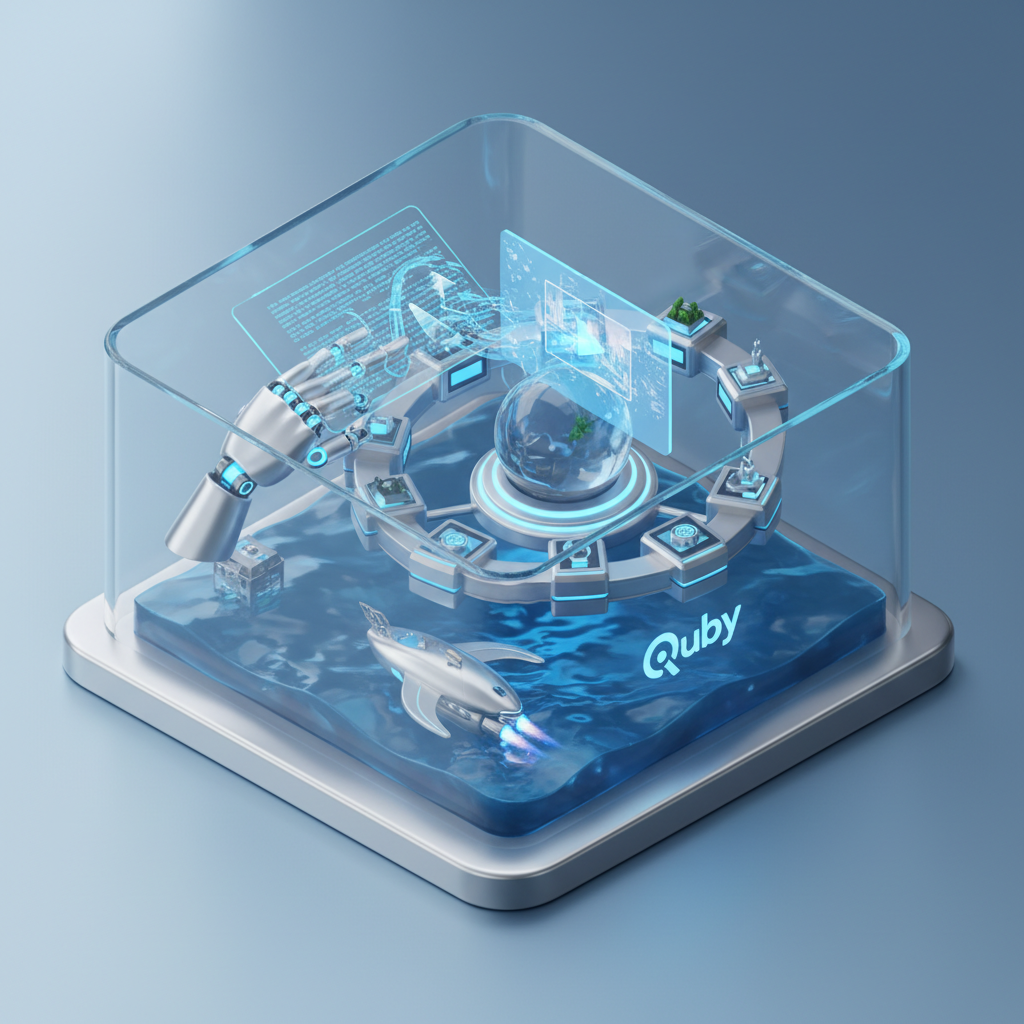
The Demand for Rapid Video in 2026: Why Speed Matters for Content Creators
Think about your daily scroll, right now in March 2026. What grabs your attention? Short, punchy videos. Informative clips. Explainer animations. Viral skits. The sheer volume of content out there is staggering, and it's only growing. Audiences expect fresh, engaging material constantly. For content creators, this isn't just a trend; it's the new reality. Speed isn't just a bonus anymore, it's absolutely essential for staying relevant and cutting through the noise.
Back in 2025, we saw the early sparks of AI video. Now, in 2026, it's a roaring fire. The expectation for high-quality, frequent video output has skyrocketed. If you're still relying on traditional, slow production methods, you're already behind. Traditional video editing, with its weeks of shooting, rendering, and revisions, just can't keep up with today's content cycle. Imagine needing to produce a dozen social media videos, a detailed product demo, and a quick educational piece, all in a single week. Human-powered production lines would groan under that pressure, but an AI-driven approach? That's where the magic happens.
This isn't about replacing human creativity, not at all. It's about empowering it. It's about taking the tedious, time-consuming parts of video production and handing them over to incredibly powerful tools. This frees you up to focus on the big ideas, the compelling narratives, and the unique voice that only you can bring. We need tools that can help us create videos with AI at the speed of thought, turning a simple text prompt into a visual story in minutes, not days. That's the demand, and 2026's AI models are here to meet it.
Navigating 2026's Advanced AI Video Models for Efficiency
The AI landscape has evolved at breakneck speed. What felt like sci-fi a year or two ago is now standard operating procedure for any serious creator. When we talk about generating video from text, we're not talking about grainy, janky clips anymore. We're talking about incredibly high-fidelity, stylistically diverse, and surprisingly coherent video sequences.
Let's look at the heavy hitters we've got available today:
- Veo 3.1 (Google): Google's latest iteration of Veo is a beast. It's fantastic for realistic footage, capturing nuanced motion and complex scene changes with impressive accuracy. If you need something that looks like it could have been shot by a professional camera crew, Veo 3.1 is often your first stop. It's gotten really good at interpreting complex cinematic language from simple prompts.
- Runway 4.5: Runway continues to be a powerhouse for stylistic and creative control. Version 4.5 has enhanced its ability to maintain character consistency across shots and handle challenging visual effects. For music videos, abstract art, or stylized brand content, Runway gives you a painter's brush over your video output. Its control over camera movements and shot composition has matured beautifully.
- Kling 3: This one's a dark horse that has gained serious traction. Kling 3 excels at narrative coherence over longer clips, something that was a huge challenge for earlier models. It understands story beats better, making it easier to string together multiple generated scenes into a cohesive mini-story. If your goal is short-form storytelling, Kling 3 is remarkably helpful.
- Minimax Video-02: When you need speed and a diverse range of visual styles, Minimax Video-02 is a go-to. It's incredibly versatile, capable of producing everything from anime-style animations to highly stylized abstract visuals, often faster than its counterparts. This model is a workhorse for generating variations or quick concepts.
- Sora 2.0: OpenAI's Sora, now in its 2.0 iteration, has really cemented its place. It's known for its ability to generate highly detailed, complex scenes with multiple characters and dynamic interactions, all from a text prompt. Sora 2.0 often produces stunning results that push the boundaries of realism and imaginative world-building.
But here's the thing: these are all powerful, independent engines. Creating a full video often means pulling assets from several different sources. You might want the realism of Veo 3.1 for a main shot, the stylized flair of Runway 4.5 for a transition, and the character consistency of Kling 3 for a specific sequence.
And it doesn't stop there. Think about the supporting cast:
- Image Generation: FLUX 1.1, Grok Imagine, Gemini 2.5, GPT-5 DALL-E, and Ideogram 3.0 are all fantastic for generating specific static images or overlays you might need within your video. Character designs, background art, product shots-they all play a role.
- 3D Models: Meshy v4, Trellis, Rodin Gen-2, and Tripo3D v3 are making it easier to generate custom 3D assets that can be animated or integrated into your video scenes, adding another layer of depth and customization.
- Voice AI: ElevenLabs v3, Bark 2.0, and OpenAI TTS-HD offer incredibly natural-sounding voiceovers in a multitude of languages and styles. No more robotic narrators; these tools give your AI videos a human touch.
The challenge isn't finding powerful AI; it's orchestrating them. How do you bring all these incredible capabilities together into a single, efficient text to video AI workflow? You need a central control panel.
Quby Video Studio: Your Central Hub for Streamlined Text-to-Video Production
This is where Quby (quby.app) steps in and truly shines. Imagine trying to juggle all those powerful AI models, each with its own interface, its own prompt structure, its own nuances. It would be a chaotic mess. You'd spend more time switching tabs and converting files than actually creating. Quby Video Studio solves that problem by acting as your single, intelligent command center for the entire video generation process.
Quby isn't just another AI video generator; it's an intelligent orchestrator. It brings the power of Veo 3.1, Runway 4.5, Sora 2.0, Kling 3, Minimax Video-02, and all those fantastic image, 3D, and voice AI models under one roof. Think of it as the ultimate production manager for your AI crew. You don't need to be a prompt engineering expert for every single model; Quby helps you manage and optimize your prompts, routing them to the best-suited AI for the job.
What does this mean for your AI video workflow 2026? It means you can:
- Select models with ease: Quby lets you choose which AI video model to use for specific segments, or even suggest the best one based on your prompt and desired style.
- Manage assets centrally: All your generated video clips, images, 3D models, and voiceovers are stored and organized within Quby, making it simple to find and reuse them.
- Integrate multi-modal elements: Seamlessly combine a Veo 3.1 video clip with an Ideogram 3.0 generated background, overlaid with an ElevenLabs v3 voiceover. Quby handles the technical glue, so you can focus on the creative assembly.
- Iterate faster: Generate a clip, preview it, make a slight prompt adjustment, and regenerate-all within the same environment. This rapid iteration is key to getting exactly what you envision without wasting precious time.
For anyone looking to create videos with AI efficiently, Quby removes the technical hurdles and lets you leverage the absolute best of 2026's AI capabilities without getting bogged down in complexity. It turns what could be a fragmented, frustrating process into a smooth, intuitive creative flow. And yes, you can get started with Quby as an AI video maker free for basic tasks, letting you dive in and experience this streamlined approach firsthand.
Step-by-Step: Building a Rapid AI Video Workflow with Quby
Alright, let's get practical. How do you actually turn an idea in your head into a polished video, lightning-fast, using Quby? Here's a streamlined workflow that embraces the power of 2026's AI models.
Step 1: Concept, Scripting, and Initial Prompts
Every great video starts with an idea. But with AI, your idea needs to be translated into clear, descriptive language.
- Brainstorm & Outline: What's your video about? Who's it for? What's the core message? Jot down key scenes or points.
- Script Generation (Optional but Recommended): Even for short videos, a simple script helps. Use a large language model like GPT-5 to help you draft narration, character dialogue, or even shot descriptions. For example, "Generate a 30-second social media script about the benefits of sustainable energy, targeting Gen Z, with a hopeful tone."
- Break Down into Prompts: Take your script or outline and break it into individual visual and audio components. Each component will become a prompt for Quby. Think:
- Visual Scene 1: "futuristic city skyline at sunset, drones flying, cinematic wide shot, detailed, photorealistic."
- Character Action: "young woman looking thoughtfully at a holographic display, slight smile, modern office setting, soft lighting."
- Voiceover Text: "The future is powered by innovation, but grounded in responsibility."
Step 2: Asset Generation within Quby
Now, you'll start bringing those prompts to life. Quby makes this incredibly efficient.
- Generate Video Clips:
- Inside Quby, navigate to the video generation interface.
- Input your visual prompt (e.g., "futuristic city skyline at sunset...").
- Choose your model: Based on your desired style, select the appropriate AI. For photorealism, you might start with Veo 3.1 or Sora 2.0. For something more stylized or experimental, Runway 4.5 or Minimax Video-02 could be better. Quby often gives you recommendations or defaults based on common use cases.
- Specify parameters: Adjust duration, aspect ratio, camera movement (if the model supports it directly).
- Generate and Review: Quby will send your prompt to the selected model and return the clip. Review it. If it's not quite right, tweak the prompt and regenerate. This iterative process is quick and crucial.
- Repeat for all your necessary video clips.
- Generate Images (for Overlays, Backgrounds, or Stills):
- If you need specific static images-a product shot, a graphic, a custom background-use Quby's integrated image generation.
- Input your image prompt (e.g., "sleek, minimalist smartwatch displaying a sustainable energy graph, bokeh background, product photography style").
- Select an image AI like FLUX 1.1 or Ideogram 3.0 for artistic flair, or GPT-5 DALL-E for general purpose.
- Generate and save.
- Generate 3D Assets (if applicable):
- For more complex scenes or if you need a custom object, you can generate 3D models.
- Prompt for your 3D asset (e.g., "abstract crystalline energy core, glowing, intricate details").
- Use integrated models like Meshy v4 or Trellis to create a 3D object that you can then potentially animate or position within your video. Quby can then help you render this into a video clip or an image.
- Generate Voiceovers:
- Take your script's narration text.
- In Quby's audio section, paste the text.
- Choose a voice model like ElevenLabs v3 or OpenAI TTS-HD. Select a voice, tone, and language.
- Generate the audio. Listen for pace and inflection. Adjust as needed.
Step 3: Assembly and Editing in Quby
Now you have all your raw materials. Quby's Video Studio environment is where you stitch it all together.
- Drag and Drop: Pull your generated video clips, images, and audio tracks onto the timeline.
- Sequence: Arrange the clips in the desired order.
- Trim and Cut: Easily adjust clip durations. Quby's interface is designed for quick, precise cuts.
- Add Overlays: Place your generated images as overlays or lower-thirds.
- Sync Audio: Align your voiceover tracks with the corresponding visuals.
- Basic Transitions & Effects: Apply simple dissolves, fades, or text overlays directly within Quby. While not a full-blown NLE, it handles the most common needs for rapid output.
Step 4: Refinement and Export
- Review: Watch your entire video. Does it flow well? Is the message clear? Are there any awkward transitions?
- Quick Edits: Make any final tweaks to timing, audio levels, or visual elements.
- Export: Choose your desired resolution, frame rate, and file format. Quby handles the rendering, usually much faster than traditional software.
This entire process, from idea to final export, can take mere minutes or a few hours, depending on the complexity of your video. That's the power of an AI video workflow 2026 built around a central hub like Quby.
Pro Tips for Scaling Your 2026 AI Video Output with Quby
Moving beyond the basics of generating a single video, how do you truly master rapid AI video creation and scale your output? Quby, as an AI video maker free to get started, offers a fantastic platform for this. Here are some pro tips:
1. Master the Art of Prompt Engineering for Each AI Model
Knowing which keywords work best for Veo 3.1 versus Runway 4.5 is gold. Quby helps by allowing you to test prompts rapidly.
- Specificity is Key: Instead of "person walking," try "young woman, 20s, confident stride, walking through a bustling market in Marrakech, sunlight dappling, cinematic camera tracking shot."
- Negative Prompts: Don't just say what you want, say what you don't want. "Exclude blurry, no watermarks, avoid uncanny valley." This refines your output considerably.
- Iterate and Learn: Save your successful prompts. Quby often provides prompt history, which is invaluable. Learn what combinations of keywords, styles, and model choices give you the best results for different scenarios.
2. Create Reusable Templates and Asset Libraries
If you're making a series of similar videos (e.g., product updates, daily news summaries), don't start from scratch every time.
- Prompt Templates: In Quby, save sets of common prompts for intro scenes, character types, or specific environments.
- Character Consistency Packs: Experiment with specific prompt combinations for characters and save them. This is crucial for maintaining a consistent look across multiple clips using different models.
- Visual Style Guides: Define and save a collection of prompts that consistently generate your brand's aesthetic, making it easier to maintain visual identity across all your content.
3. Batch Processing and Variation Generation
One of the biggest advantages of an AI video generator is its ability to create multiple options quickly.
- Generate Variations: For a critical scene, generate 3-5 different versions from slightly varied prompts. This gives you choices and often uncovers unexpected creative angles.
- Batch Render Scripts: If you need 10 short social media clips all following a similar structure but with different text, Quby allows you to feed in a list of prompts and generate them in one go, saving immense amounts of time.
4. Smart Storyboarding and Pre-Visualization
Even with rapid AI tools, a little planning goes a long way.
- Visual Outline: Before generating anything, sketch out a simple visual storyboard. This helps you identify what kind of clips you need and prevents you from generating unnecessary assets.
- Text-First Approach: Write out your entire script and then convert it into detailed prompts for each visual and audio element. This ensures your story is coherent before you even hit "generate."
5. AI-Assisted Editing and Refinement
Quby isn't just for generation; it's for assembly.
- Quick Compositing: Use Quby's simple editing tools to layer elements. Need a character generated by Kling 3 standing in a background generated by Sora 2.0? Quby makes it straightforward to combine them.
- Voice-to-Video Syncing: Leveraging the integrated voice AI, Quby can help you align your generated visuals perfectly with your narration, even suggesting cuts based on speech patterns. This dramatically speeds up the editing phase.
- Music Selection: While not explicitly mentioned, many platforms like Quby are starting to integrate AI music generators or smart music recommendation engines that can suggest tracks to match your video's mood and pace.
By adopting these pro tips, you're not just creating videos; you're building a highly efficient, scalable content machine. You become less of a video editor and more of a video director, using powerful AI as your production studio. The shift in 2026 isn't just about what AI can do, but how effectively you can put it to work. An AI video maker free like Quby allows you to experiment and discover these efficiencies without a huge upfront investment.
The future of video content creation in 2026 is fast, intelligent, and incredibly exciting. Dive into Quby and start experimenting with what's possible. See for yourself how quickly you can turn text into screen-ready video. Discover your own ai video workflow 2026 that makes producing compelling content an absolute breeze. Give Quby a try, and unlock a new level of creative speed.
Ready to Create with AI?
Put these techniques into practice with Quby's professional AI creative tools.
Launch Creative Suite