Mastering Free Text to 3D Model AI in 2026: Design & Print Your Ideas with Quby
2026 brings free text-to
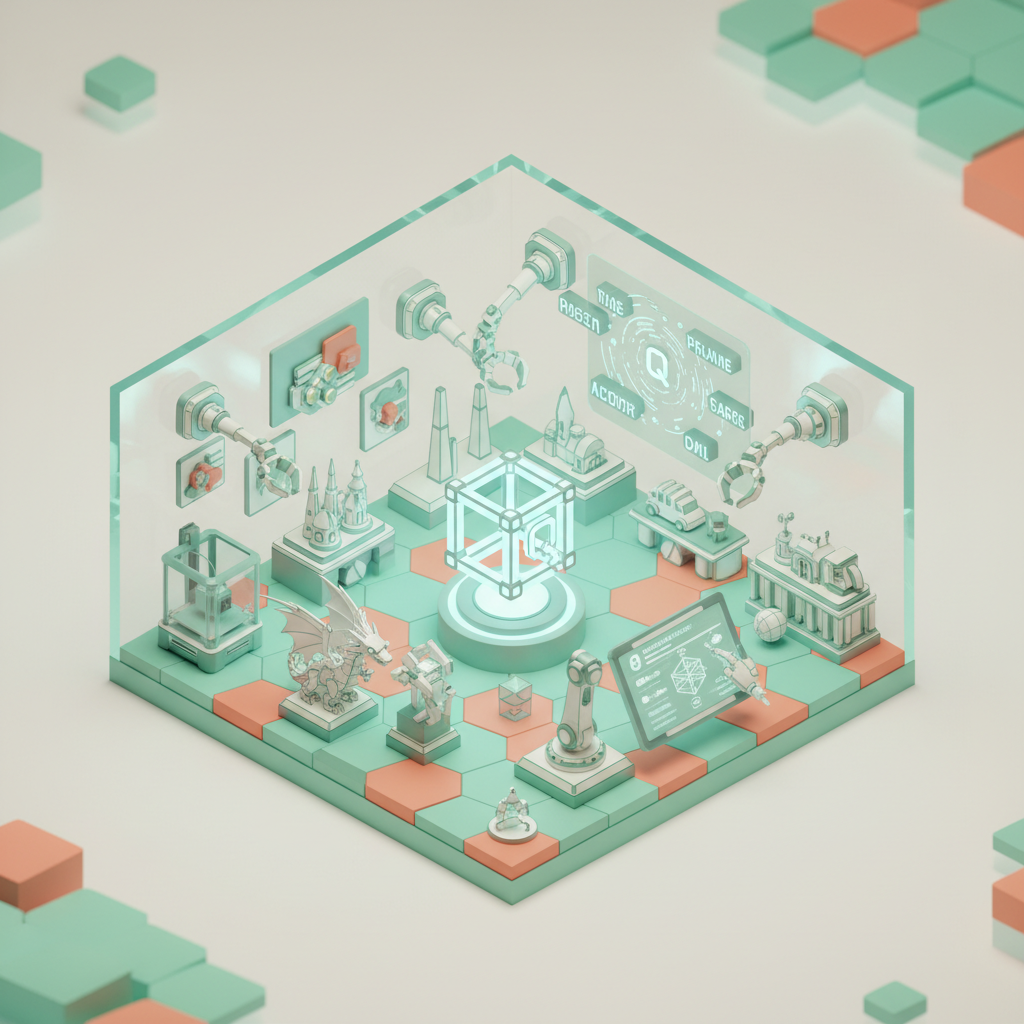
The 2026 Revolution: Free Text to 3D Model AI for Everyone
Remember the early days of AI image generation, just a few years back? We were all blown away by what models like Gemini 2.5 and GPT-5 DALL-E could whip up from a few words. Then came the incredible leap in AI video, with Veo 3.1 and Sora 2.0 making Hollywood-level clips accessible. Well, friends, hold onto your hats because 2026 is the year that same magic fully descends upon the world of three-dimensional design. We're talking about mastering free text to 3d model ai, turning your wildest ideas into tangible objects, and printing them out, all without needing a degree in CAD.
It's a game-changer, truly. For years, if you wanted a custom 3D model, you had two choices: spend hundreds of hours learning complex software like Blender, or shell out a lot of cash to a professional designer. Neither option was particularly appealing for the average maker, educator, or small business owner. But now? We've got powerful ai 3d generator tools that understand natural language. Imagine typing "a sleek, futuristic space shuttle with deployable wings, painted metallic blue and orange" and watching a fully realized 3D model appear before your eyes. This isn't science fiction anymore, it's just how we create things in 2026.
This shift means accessibility. Suddenly, anyone with an idea can create 3d models free from their web browser. No expensive licenses, no steep learning curves, just pure creation. The technology behind this, models like Meshy v4, Trellis, Rodin Gen-2, and Tripo3D v3, has matured incredibly quickly. They're faster, more accurate, and much better at understanding context than their predecessors. What's even better, platforms like Quby are making these advanced capabilities available to everyone, often at no cost for basic generation. This isn't just about fun, it's about opening up entirely new possibilities for innovation, prototyping, and personal expression. The future of design is here, and it speaks our language.
Getting Started with Quby's 3D Generator: Your Gateway to Free 3D Models
So, how do you actually jump into this exciting world? It's probably simpler than you think. Quby (quby.app) offers one of the most user-friendly entry points into the realm of text to 3d model ai. Think of it as your personal digital sculptor, ready to bring your words to life. Getting started with Quby's ai 3d generator takes just a few clicks.
First, head over to quby.app. You'll find a straightforward interface. The main attraction? A text box, waiting patiently for your genius. This is where you'll type in your prompt, describing the 3D model you want to create. Don't worry about being an expert prompt engineer right away; Quby is pretty forgiving.
Let's try an example. Say you want a stylized robot. You might type: "A cute, small robot, retro style, with big friendly eyes, made of shiny red plastic." That's it. Hit the generate button, and Quby gets to work. You'll see it thinking, processing your words, drawing upon its vast training data to construct a three-dimensional representation.
What happens next is the magic. Within moments, Quby will present you with a preliminary 3D model. It usually gives you a few variations to pick from, which is super handy. You can spin it around, zoom in, and see it from all angles right there in your browser. The outputs are typically clean meshes, often with basic textures applied, ready for further refinement or direct export. This process makes it incredibly easy to create 3d models free, giving you a taste of true design freedom without any commitment. It's a quick, iterative way to see your ideas take shape, and it's a fantastic starting point for anyone curious about this technology.
Crafting Perfect Prompts for Printable 3D Designs in 2026
Alright, you've seen the magic of the ai 3d generator. Now, let's get serious about making those models truly shine, especially if you plan on 3d printing from text. The quality of your prompt directly translates to the quality of your output. It's not just about what you want, but how you ask for it. Think of yourself as directing an incredibly skilled, but literal, artist.
Here are some pro tips for crafting prompts that yield awesome, printable results:
- Be Specific, Not Vague: Instead of "a car," try "a sleek, futuristic sports car, low profile, with wide tires and a glowing blue grille." The more detail, the better.
- Define Your Style: Do you want it cartoonish? Realistic? Sci-fi? Steampunk? "A grumpy garden gnome, highly detailed, realistic texture, made of weathered stone." This guides the AI's aesthetic choices.
- Consider Materials and Colors: Even if you're printing in a single color, describing materials helps the AI with surface textures and reflections. "A smooth, reflective chrome sphere," or "a rough, unpolished wooden box."
- Think About Form: Is it round, angular, blocky? Is it hollow or solid? "A cylindrical vase, narrow neck, wide base, spiraling pattern engraved on the surface."
- Additive Details: Use adjectives liberally. "Ornate," "minimalist," "textured," "smooth," "weathered," "glossy."
- Negative Prompts (When Available): Some advanced free 3d ai tools allow you to specify what not to include. For example, if your model keeps generating with legs and you want it legless, you might add something like "no legs" in a negative prompt box. Quby is constantly updating its features, so keep an eye out for these advanced controls.
When you're thinking about 3d printing from text, always keep the physical world in mind. A prompt like "a delicate, intricate lace pattern" might look amazing on screen, but it'll likely be impossible to print without specialized equipment or very careful design. If you want something printable, add descriptors that suggest structural integrity: "solid," "thick-walled," "sturdy base." For example, "A sturdy, simple coffee mug with a wide handle, smooth ceramic finish, ready for 3D printing." This gives the AI cues that your intent is a functional object, not just a visual. Remember, it's an iterative process. Generate, examine, refine your prompt, and generate again. That's the beauty of these free 3d ai tools.
From Pixels to Plastic: Optimizing AI-Generated Models for 3D Printing
You've used your text to 3d model ai to generate an amazing design. Fantastic! But here's the honest truth: an AI-generated 3D model, right out of the box, isn't always perfectly ready for your 3D printer. This isn't a knock against the ai 3d generator itself; it's just the reality of bridging the gap between a digital concept and a physical object. The good news is, with a few simple steps and readily available free 3d ai tools or complementary software, you can get your model print-ready.
The biggest hurdles usually involve the model's geometry. AI models, while brilliant, can sometimes produce meshes with "non-manifold" edges, holes, or overlapping faces. These are like structural flaws that confuse a slicer program, which is what translates your 3D model into printer instructions. A common sign you have issues is when your slicer (like PrusaSlicer 2.7 or Cura 5.x) warns you about errors or shows parts of your model missing.
Here's your quick checklist for turning a digital marvel into a physical one:
- Inspect Your Model: Many text to 3d model ai platforms, including Quby, let you download your creation as an .OBJ or .STL file. Open it in a free viewer or a basic 3D editor (even Windows 3D Viewer can give you a quick look). Look for gaps, weird intersecting surfaces, or extremely thin parts.
- Mesh Repair is Your Friend: This is a crucial step. There are fantastic free tools for repairing meshes. Online services like the Netfabb online repair tool from Autodesk are excellent. You upload your .STL, it fixes common geometry errors, and you download a clean version. For more hands-on control, free desktop software like Meshmixer (from Autodesk) or Blender (if you're feeling adventurous) offer powerful repair features. They can automatically fix holes, make surfaces manifold, and generally tidy things up.
- Check Wall Thickness: A common pitfall for 3d printing from text is models with walls too thin to print. Most 3D printers need a minimum wall thickness (often around 1-2mm) to produce a stable object. If your AI-generated design looks delicate, consider importing it into Meshmixer and using its analysis tools to check wall thickness. You might need to scale the model up or use a "solidify" function to add more bulk.
- Consider Orientation and Supports: Before slicing, think about how your model will sit on the print bed. Orienting it correctly can reduce the need for support structures, which save material and post-processing time. Your slicer software will help you identify overhangs that need support.
- Scale It Right: AI models often generate objects at arbitrary scales. You'll need to scale your model in your slicer to fit your printer's build volume and achieve the desired physical size.
- Print Settings: Finally, choose appropriate print settings in your slicer. Infill percentage, layer height, print speed, and material type all play a big role. Start with standard settings for your chosen filament and adjust as needed.
While the AI handles the creative heavy lifting, these post-generation steps ensure your design moves smoothly from the screen to your print bed. It's a small but important part of truly mastering free text to 3d model ai for practical applications.
Your 2026 Toolkit: Beyond Generation with Quby and the Future of Free 3D Printing
We've come a long way, haven't we? From a mere idea in your head to a refined, print-ready 3D model, all thanks to the incredible advancements in text to 3d model ai. Quby isn't just about giving you one shot at generation; it's a platform built for an iterative and expansive creative workflow. While this guide focused on its powerful ai 3d generator, remember Quby is an entire suite. It's where you can also experiment with the latest in image generation (like FLUX 1.1 or Ideogram 3.0 inspired styles to guide your 3D vision) or even dabble in text-to-video if you're exploring animations for your newly designed objects. The integration of these free 3d ai tools within a single platform makes your creative process genuinely fluid.
What's next for free 3d ai tools and the broader 3d printing from text movement in 2026 and beyond? I think we'll see several exciting developments:
- Real-time Refinement: Imagine generating a model and then, using simple language, telling the AI to "make the roof curvier," or "add a window here," with instant updates. We're already seeing hints of this interactive prompting.
- Multi-Material and Color Prompts: Currently, getting an AI to generate a model suitable for multi-material or multi-color 3D printing from a single prompt is tough. But soon, you might type "a robot with a red plastic body, blue rubber joints, and clear acrylic visor," and the AI could generate separate STL files or material maps for each component.
- Physics-Aware Generation: AI that understands how objects need to function. Asking for "a sturdy bracket to hold a 2kg shelf" could lead to an AI generating a topologically optimized design, taking into account stress points and material properties.
- Direct Slicer Integration: Picture hitting 'generate' and the AI not only gives you the model but also optimized G-code for your specific printer, filament, and desired quality settings. That would be a huge leap in 3d printing from text.
- Expanded Libraries and Training: As more users create and share, the training data for these AI models will grow even richer, leading to more diverse, detailed, and accurate outputs.
The bottom line is this: 2026 marks a turning point. The barrier to entry for 3D design has basically crumbled. Whether you're a hobbyist dreaming up custom miniatures, an educator looking for engaging learning aids, or a small business needing rapid prototyping, free 3d ai tools like Quby empower you like never before. Don't just watch the future unfold. Go grab your ideas, type them out, and start bringing them to life. The world is waiting for what you'll create.
Ready to see your imagination take shape? Head over to Quby and start creating your first free 3D model with text today. It's waiting for you.
Ready to Create with AI?
Put these techniques into practice with Quby's professional AI creative tools.
Launch Creative Suite