Mastering AI 3D Models: Your 2026 Guide to Free Text-to-3D for 3D Printing with Quby
Unlock free AI text-to-3D for printing
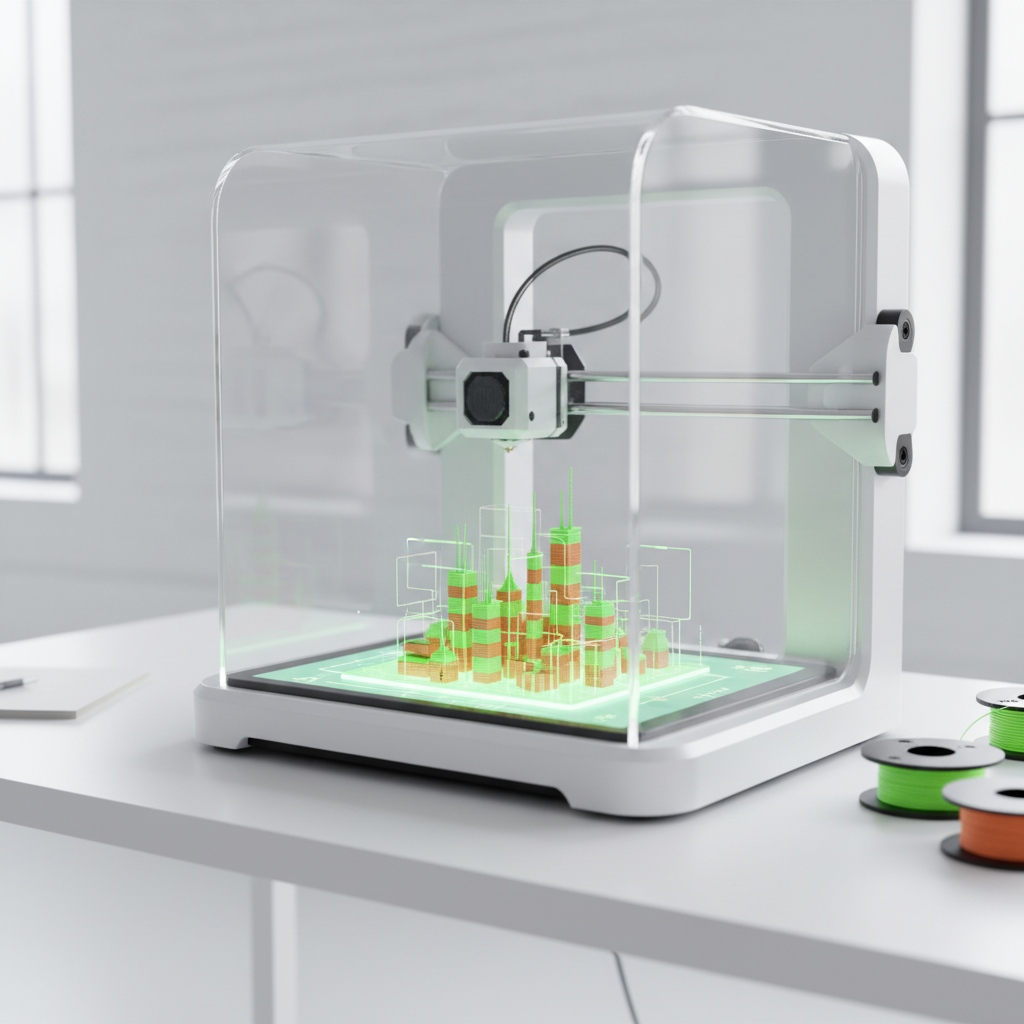
The 2026 Revolution: Why AI 3D Modeling is Your Next Skill
Remember when 3D modeling felt like something only pros with expensive software and years of training could do? It's okay if you still think that. For a long time, it was mostly true. Creating anything intricate, from a simple character for a game to a complex mechanical part for manufacturing, demanded serious dedication, technical skill, and often, a hefty budget for specialized tools. You spent hours pushing vertices, sculpting polygons, and tweaking textures. It was a painstaking process, rewarding yes, but also a huge barrier for many aspiring creators, designers, and hobbyists.
Well, guess what? It's 2026, and the world of digital creation has gone through a massive shake-up. We're not just talking about minor improvements, this is a genuine transformation, driven by artificial intelligence. If you haven't dipped your toes into AI 3D modeling yet, you're missing out on what's quickly becoming an essential skill for anyone who wants to bring their ideas into three dimensions. This isn't just about making things faster, it's about making creation accessible to everyone, regardless of their prior experience.
Think about it. Imagine sketching an idea in your head, then simply describing it with words, and watching as a fully formed 3D object appears on your screen. That's not science fiction anymore, it's today's reality. The capability to transform plain text into a detailed, ready-to-use 3D model is one of the most exciting advancements we've seen. This technology is tearing down the old walls. Artists can prototype ideas faster, designers can visualize concepts in minutes, and hobbyists can finally bring those wild ideas for their 3D printer to life without needing an engineering degree.
Why is this a skill you absolutely need to pick up? Because the demand for 3D content is exploding across every industry imaginable. From virtual reality and augmented reality experiences to product design, animation, and yes, even personalized 3D printing from text, the need for high-quality 3D assets is insatiable. Being able to quickly generate these assets, to iterate on designs with unprecedented speed, gives you a significant edge. It empowers you to innovate, experiment, and create in ways that were simply impossible a few years ago. And the best part? You can often create 3D models free right from the start, getting a feel for the power of an AI 3D generator without spending a dime. This really is a revolution, and you're invited.
Getting Started: Create 3D Models Free with Quby's AI 3D Generator
So, how do you jump into this incredible world of AI-powered 3D creation? You start with a tool that understands your words and translates them into tangible shapes. That's where Quby comes in. If you're looking to create 3D models free and quickly, Quby (quby.app) is an excellent place to begin your journey. It's designed to be user-friendly, letting you dive straight into generating models without a steep learning curve. No complex interfaces, no jargon, just your ideas and a text box.
Let's walk through the basic steps to use Quby as your personal AI 3D generator. You'll see how straightforward it is to go from a simple thought to a detailed 3D object.
- Head to the Quby Website: First things first, open your browser and go to quby.app. You'll find a clean, intuitive interface waiting for you. This is where the magic happens.
- Locate the Text-to-3D Input: You'll usually see a prominent text field, much like a search bar, where you're prompted to describe what you want to create. This is your command center, the place where you'll put in your prompt.
- Craft Your Initial Prompt: This is where you tell the text to 3d model AI what you envision. Don't overthink it for your first try. Start simple. Want a specific animal? Type "a cute cartoon cat." Looking for a piece of furniture? Try "a modern armchair with wooden legs." The goal here is to give the AI a clear, concise starting point.
- Generate Your Model: Once your prompt is in, hit the "Generate" or "Create" button. Now, give it a moment. The quby 3d generator is working hard behind the scenes, processing your words, pulling from its vast knowledge base, and constructing a 3D mesh that matches your description. This usually takes just a few seconds to a minute, depending on the complexity and the current server load.
- Review and Refine: Voilà! You'll see your freshly generated 3D model appear on screen. You can usually rotate it, zoom in, and get a good look from all angles. Is it exactly what you wanted? Probably not perfectly on the first try, and that's totally okay. This is where the iterative process begins. If it's close, great! If it's not quite right, don't worry. You'll just refine your prompt. We'll talk more about prompt engineering in the next section.
- Download Your Creation: Once you're happy with a model, Quby typically offers options to download it in common 3D formats like OBJ, STL, or GLB. These are standard files you can open in other 3D software or directly import into your slicer for 3D printing. It really is that easy to get started and create 3D models free. You're just a few clicks away from bringing your ideas to life.
This ability to quickly generate a base model, then refine it, saves an incredible amount of time compared to traditional modeling methods. It allows for rapid prototyping, letting you test out dozens of ideas in the time it used to take to make one. And for anyone dabbling in 3D printing from text, this is a godsend.
Prompt Engineering for Perfection: Best Practices for Text-to-3D Model AI
Getting a 3D model from text sounds easy, and the basic steps are, but getting a perfect 3D model often takes a bit more finesse. This is where prompt engineering comes in, and it's less about coding and more about clear communication. Think of it like giving instructions to a very talented but literal artist. The better your description, the closer the result will be to your vision. Mastering this is key to getting the most out of any text to 3d model AI.
Here are some best practices to help you craft killer prompts and refine your creations:
- Be Specific, But Not Overly Restrictive (Initially): Start with the core subject. "A dragon." Then add details: "A fierce red dragon." Then more: "A fierce red dragon, snarling, with large leathery wings and sharp claws." The AI needs enough information to differentiate it from other concepts. But avoid trying to describe every single polygon. Let the AI do some of the heavy lifting.
- Specify Style and Aesthetic: This is huge. Do you want a realistic model? A cartoon one? Something stylized, sci-fi, or fantasy? Adding keywords like "realistic," "cartoonish," "low poly," "futuristic," "medieval," "claymation style," or "anime style" can dramatically alter the output. For example, "a sleek, futuristic spaceship" will give a very different result than "a chunky, retro sci-fi spaceship."
- Define Material and Texture: What's it made of? "A wooden chair," "a metallic robot," "a glass vase." You can also suggest surface qualities: "shiny," "rough," "smooth," "weathered," "scratched." This helps the AI understand the visual properties even if you're just getting a basic mesh.
- Consider the Setting or Environment: Sometimes, describing where the object would be found helps the AI generate appropriate details. "A rusty old car found in a desert," "a magical sword floating in space," or "a cozy cottage in a snowy forest." These contextual cues can influence the model's appearance.
- Use Adjectives and Adverbs Wisely: Descriptive words add depth. "A majestic, soaring eagle," "a tiny, intricate clockwork mechanism," "a whimsical, bubbly monster." Each word paints a clearer picture for the AI 3D generator.
- Include Negative Prompts (If Available): Some advanced text to 3d model AI tools allow you to specify things you don't want. This is incredibly powerful. For example, if you keep getting a dragon with horns and you want one without, you might add something like "no horns" or "without horns" in a negative prompt section. Quby is always getting smarter, so keep an eye out for these advanced features as they roll out.
- Iterate, Iterate, Iterate: Your first prompt rarely yields perfection. It's a conversation. Generate a model, see what you like and don't like, then tweak your prompt. Add more detail, remove something, change a word. This iterative process is essential. For instance, if you type "a car" and get a sedan, try "a sports car, sleek, red" for your next attempt. Then, maybe "a futuristic sports car, black, with glowing blue accents."
- Leverage Existing Examples: Look at prompts others have used successfully. Many platforms, including Quby, often showcase generated models with their prompts. Studying these can give you great ideas for phrasing and keywords. You'll quickly learn what works well.
- Experiment with Prompt Length: Sometimes a short, punchy prompt works best. Other times, a more detailed paragraph is needed. Don't be afraid to try both. See what gives you better results for different types of objects.
Remember, the goal is to guide the quby 3d generator towards your vision without stifling its creativity. It's a dance between precision and allowing the AI to interpret. With a little practice, you'll be a prompt engineering pro, churning out fantastic 3D models with ease.
From Screen to Reality: Preparing Your AI Generated Models for 3D Printing
You've used the text to 3d model AI to create something awesome. Now what? For many creators, the ultimate goal isn't just a digital file, it's a physical object. That's where 3D printing from text comes into play. Taking your AI-generated model from your screen to your printer requires a few extra steps, but don't worry, it's totally manageable. Even when you create 3D models free, they can still become real-world items.
Here's a practical guide to getting your AI model ready for the printer:
- Understand File Formats: When you download a model from Quby, you'll typically get options like OBJ, STL, or GLB.
- STL (Stereolithography): This is the most common and widely supported file format for 3D printing. It describes the surface geometry of a 3D object using a collection of triangular facets. It's simple, solid, and almost universally accepted by 3D printer slicing software.
- OBJ (Object): This format can hold more information than STL, including color, texture, and material properties. While some slicers can handle OBJ, you might need to convert it to STL if your printer software is finicky, especially if you just care about the shape.
- GLB (Binary glTF): This is a newer, more modern format, optimized for web and real-time applications. It's fantastic for viewing models online and in AR/VR, and some advanced slicers are starting to support it more broadly. For basic printing, STL remains king.
- Check for "Manifold" Meshes: This is a fancy way of saying your model needs to be "watertight." Imagine filling your model with water; if it leaks, it's not manifold. 3D printers need solid, enclosed geometry to understand what to print. AI generators are getting much better at this, but sometimes you might get small gaps, flipped normals, or intersecting geometry.
- How to check: Most slicing software will flag errors or try to repair them. Dedicated mesh repair tools (like Meshmixer, Netfabb Basic, or even Blender's 3D Print Toolbox addon) can also help you identify and fix these issues. It's often a simple click to auto-repair.
- Consider Wall Thickness: A common issue with AI-generated models, especially if they are highly intricate or artistic, is thin walls. If a part of your model is too thin for your 3D printer's nozzle, it won't print correctly or will be incredibly fragile.
- The fix: Check your model in a 3D editor. Look for areas that seem exceptionally thin. You might need to gently "thicken" them using sculpting tools or by scaling up the entire model slightly. Most FDM printers need walls at least 0.8mm to 1.2mm thick.
- Scale Your Model Correctly: Your AI model might come in at a default scale that's either tiny or enormous. You'll need to adjust its size to fit your printer's build volume and your desired real-world dimensions.
- Do this in your slicer: All 3D printing slicing software has a scaling tool. You can usually input exact dimensions or scale by a percentage. Always double-check the units (mm, cm, inches) to avoid surprises.
- Use Slicing Software: This is the bridge between your 3D model file and your 3D printer. Popular slicers include Ultimaker Cura, PrusaSlicer, and Simplify3D.
- Import: Load your STL (or OBJ) file into your chosen slicer.
- Orient: Position your model on the print bed in an orientation that minimizes supports and maximizes strength.
- Supports: If your model has overhangs (parts floating in mid-air), you'll need to generate support structures. Your slicer can do this automatically.
- Infill: Decide how dense you want the inside of your model to be. More infill means stronger, heavier, and longer prints.
- Generate G-Code: The slicer converts your 3D model into G-code, which is a series of commands your 3D printer understands.
- Transfer: Save the G-code file to an SD card or transfer it directly to your printer.
- Print! Load your filament, preheat your printer, and start the print. Monitor the first few layers to ensure good bed adhesion.
The beauty of 3D printing from text is that the initial design hurdle is significantly reduced. You can spend less time struggling with complex modeling software and more time focusing on optimizing your prints and bringing your creative visions to life. Even beginners can create 3D models free and hold them in their hands within minutes or hours.
Beyond the Basics: Advanced Workflows and the Future of 3D Printing from Text
You've mastered the art of generating basic models and getting them ready for printing. What's next for your journey into text to 3d model AI? The possibilities are actually pretty vast, and the technology is improving at light speed. Thinking about advanced workflows and what the future holds for 3D printing from text is exciting.
One of the biggest areas for growth is refinement and post-processing. While Quby and other AI 3D generators do an amazing job creating a base mesh, often you'll want to add specific details, textures, or make slight structural changes that are hard to convey perfectly through text alone. This is where combining AI generation with traditional 3D software becomes a superpower.
- Sculpting and Detail Work: Imagine you generate a creature, but you want to add intricate scales or specific facial features. You can download the AI-generated model (as an OBJ or STL) and import it into a digital sculpting program like Blender, ZBrush, or Nomad Sculpt (for iPad). There, you can sculpt, smooth, and add micro-details with far greater control than text prompts could ever offer.
- Retopology and Optimization: Sometimes, AI-generated meshes can be quite dense or have messy topology, especially if you're aiming for animation or game development where clean, quad-based meshes are preferred. Learning basic retopology skills in Blender or similar software can help you optimize these models for performance or further manipulation.
- Texturing and UV Unwrapping: For models that will be used in renders, games, or AR/VR, texturing is crucial. While some AI 3D generators are starting to output textured models, often you'll want to create custom UV maps and apply high-resolution textures using tools like Substance Painter or Blender's texture painting features. This allows for incredibly realistic or stylized surfaces.
- Assembly and Compositing: Don't just think about generating single objects. What if you need a scene? You could generate individual elements - a tree, a bench, a lamppost - and then assemble them into a larger scene within a 3D editor. This modular approach is incredibly powerful.
- Parametric Design Integration: For functional parts, combining AI generation with parametric CAD software (like Fusion 360 or SolidWorks) is a powerful combo. You might generate an organic-looking bracket with AI, then bring it into Fusion 360 to add precise mounting holes or adjust dimensions for perfect fitment.
The future of 3D printing from text looks incredibly bright. We're already seeing hints of what's to come:
- More Granular Control: Prompts will become even more sophisticated, allowing for finer control over geometry, topology, and even material properties. Imagine being able to specify the exact number of polygons or the internal structure of an object through text.
- Real-Time Generation: As AI models become more efficient and hardware gets faster, the generation process will likely become near-instantaneous. This means truly real-time iteration and design.
- Interactive Editing: Instead of just text prompts, imagine a hybrid system where you can verbally describe changes, then use simple gestures or direct manipulation on the generated model to fine-tune it, all while the AI assists you.
- Multi-Modal Inputs: Beyond text, AI might accept sketches, reference images, or even sound clips to influence 3D generation. "Make me a creature that sounds like this," and the AI creates its physical form.
- Automated Slicing and Repair: AI could eventually predict the best print orientation, generate optimal supports, and automatically repair complex mesh issues, making the step from generated model to G-code even smoother. Your quby 3d generator will learn your printer's quirks!
- Generative Assemblies: Instead of just single objects, AI could generate complex mechanical assemblies, complete with moving parts and appropriate tolerances, all from a high-level description.
The ability to create 3D models free or at a low cost, simply by describing them, is a massive leap forward. It democratizes 3D creation and empowers countless individuals to participate in the making process. Tools like Quby are leading the charge, making these advanced capabilities accessible. Your imagination truly becomes the only limit, and that's a pretty fantastic thought.
Ready to turn your words into wondrous 3D creations? Why not give Quby a try today and see what incredible models you can generate for your next project, or even your very first 3D print? Head over to quby.app and start creating. You'll be amazed at what you can make.
Ready to Create with AI?
Put these techniques into practice with Quby's professional AI creative tools.
Launch Creative Suite