Grok Imagine Video 1.5 Prompting Guide for Product Demo Clips
Turn a single product still into a useful short demo by planning motion, camera movement, and sound before you generate. This guide gives creators a repeatable prompt workflow for Grok Imagine Video 1.5 style clips.
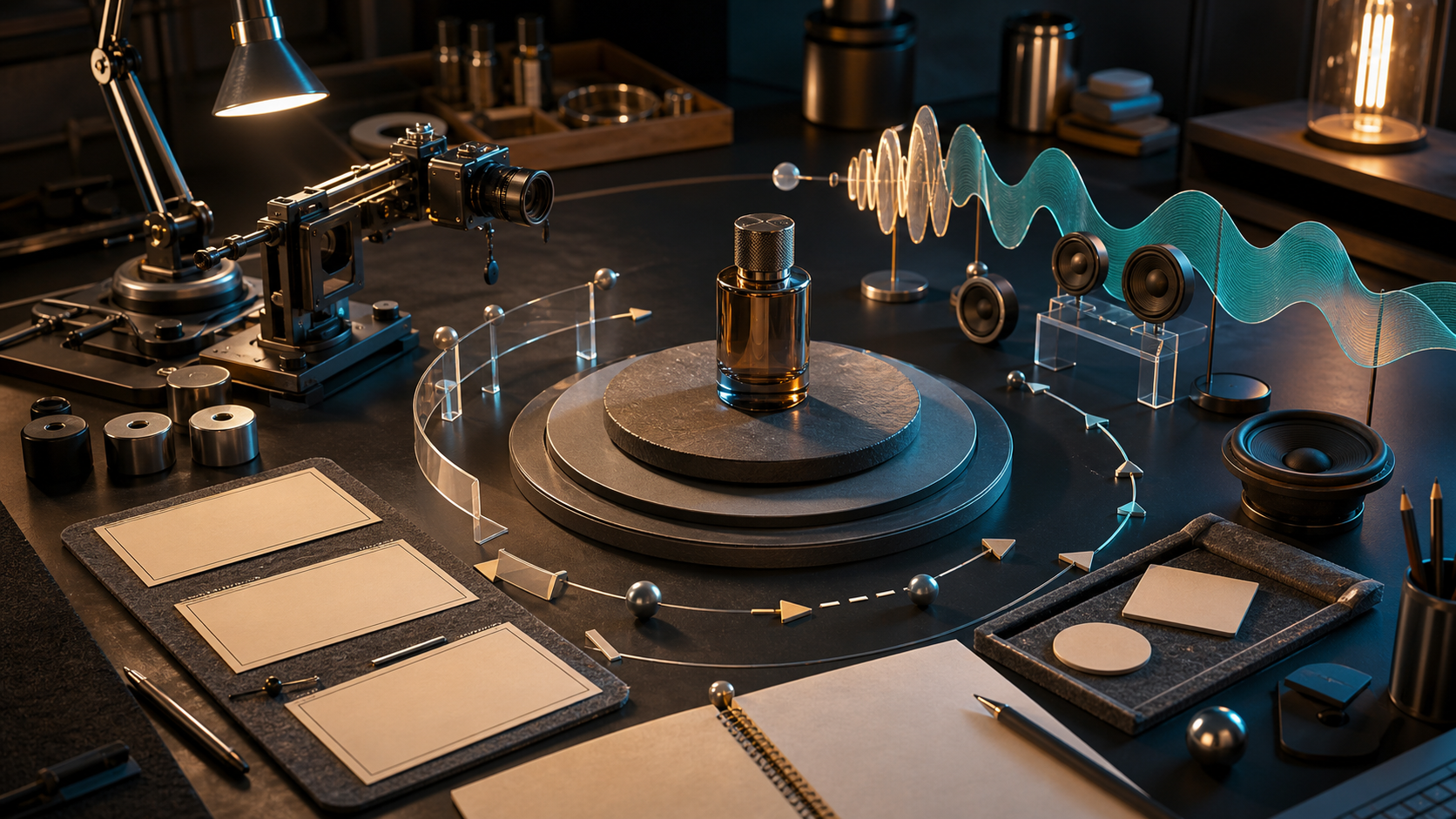
Grok Imagine Video 1.5 Prompting Guide for Product Demo Clips
Replicate's source-hook trend on prompting Grok Imagine Video 1.5 is useful because it treats video prompting as a practical production problem. A short AI video does not fail only because the model is weak. It often fails because the prompt leaves the product goal, camera behavior, material cues, and audio to chance. For creators, the best use case is not a vague cinematic scene. It is a tiny proof clip: a product turns, a feature lights up, a texture catches the light, a package opens, or a before and after state becomes clear. If you can describe that action in one sentence, you can build a stronger prompt around it.
Start With The Job Of The Clip
Before writing the prompt, choose one job. Short AI video has limited time, so one clip should usually prove one thing. Good jobs include:
- Show how a product feels in use
- Reveal one feature or transformation
- Turn a flat product image into a scroll-stopping loop
- Make packaging feel premium
- Add atmosphere around a simple object
- Create a product ad opener for a longer edit Weak jobs sound like this: make it cool, make it cinematic, make it go viral. Those are not production directions. They do not tell the model what to move, what to protect, or what the viewer should learn.
Choose The Right Starting Still
Grok Imagine style workflows can benefit from a strong source image because the still anchors identity and composition. For product demos, the input image should do three things. First, the product must be clear. Avoid cluttered lifestyle shots where the model has to guess which object matters. Second, the lighting should already fit the mood you want. Asking for a glossy premium reveal from a flat phone snapshot is possible, but it adds risk. Third, leave enough space around the product for motion. Use a still like this:
- Product centered or placed on a clean third
- Visible key surface, label, screen, or texture
- No cropped edges unless the crop is intentional
- Background simple enough to animate
- Aspect ratio close to the final channel If the still is busy, fix the image first. Crop it, remove distractions, or generate a cleaner product frame before video. In Quby, save the strongest still before testing motion.
Build The Prompt In Five Parts
A reliable product demo prompt has five parts: subject lock, motion, camera, environment, and sound. The subject lock tells the model what must stay consistent. The motion tells it what changes. The camera tells it how the viewer should inspect the product. The environment gives lighting and context. The sound adds material and pacing cues. Use this template:
Subject lock: keep the exact product shape, color, logo-free front face, and main silhouette from the input image.
Motion: the product slowly rotates 20 degrees while a small feature panel opens and closes once.
Camera: slow dolly in from a three-quarter angle, no sudden zoom, keep the product centered.
Environment: clean tabletop studio with soft reflection, warm key light, cool rim light, premium ecommerce feel.
Sound: soft mechanical click as the panel opens, light room tone, no music, no voice.
That structure gives the model a path. It also makes revisions easier. If the camera is wrong, change only the camera line. If the product drifts, strengthen the subject lock. If the clip feels silent or random, improve the sound line.
Prompt Example For A Product Reveal
Use this when you have a clean product still and want a short launch-style clip.
Keep the product from the input image stable and recognizable. The product rests on a clean studio workbench. Over four seconds, the product slowly rotates from front view to a slight three-quarter view while a thin highlight travels across the main surface. The camera performs a slow dolly in, ending close enough to show material texture. Keep the background simple and out of focus. No hands, no text, no extra products. Sound: soft studio room tone, a subtle metallic sweep as the highlight passes, no music, no speech.
This prompt is specific without being crowded. The product has one motion, the camera has one motion, and the sound supports the visual moment.
Prompt Example For A Feature Demo
Use this when the product has a screen, cap, lid, door, light, attachment, or visible feature.
Use the input image as the exact product reference. Keep the product shape and color consistent. The product sits on a matte tabletop. A small feature area activates once: the indicator light turns on, the side panel opens slightly, then returns to rest. The camera stays locked on a three-quarter view with a very slow push in. Lighting is clean, practical, and realistic. No extra labels, no text overlays, no hands. Sound: one soft click when the feature activates, a faint electronic hum for one second, then silence.
The key is to avoid asking for every feature at once. One small, believable action usually looks more useful than five actions competing for attention.
Prompt Example For A Social Ad Loop
Use this when the clip needs to loop in a feed.
Keep the input product centered and unchanged. Create a smooth four second loop. The product floats one inch above a clean surface, tilts forward slightly, then returns to the starting pose. A soft circular shadow moves naturally below it. Camera is static with a 70mm product lens look. Background is warm gray with a faint studio gradient. No text, no numbers, no logo additions, no people. Sound: gentle whoosh on the lift, soft landing tap at the loop point, no music.
Loop prompts need a clear return. Add the phrase returns to the starting pose so the clip does not end in a new state that makes the loop feel broken.
When To Use Audio And When To Skip It
Sound can help if it describes the material. A glass bottle can have a small clink. A device can have a short click. A fabric product can have a soft brush sound. A food shot can use a light sizzle or pour. Skip detailed audio if the clip will be used under music, voiceover, or a platform trend track. In that case, ask for no speech and no music so the generated audio does not fight your edit. A simple rule: use sound when it makes the product feel more real. Skip it when the final channel already has its own audio plan.
Common Failure Modes
If the product morphs, your subject lock is too weak or the starting still is not clear enough. Use fewer action requests and repeat the consistency requirement. If the camera moves too much, remove style language like dynamic, epic, or intense. Replace it with measurable camera direction: locked camera, slow push in, slight orbit, or no zoom. If the background steals attention, describe it as simple and out of focus. Do not give it a story. If the sound is strange, shorten it. Use one or two sound events only. Sound prompts like rich audio environment invite extra noise. If the clip looks like a fake commercial, reduce the mood language and add practical details: tabletop, product lens, softbox reflection, clean shadow, realistic material.
A Fast Review Checklist
Before accepting a generated clip, check five things.
- Product identity: does the product still look like the input?
- Main action: can a viewer describe the motion in one sentence?
- Camera: does the movement help inspection instead of hiding errors?
- Sound: does it support the material and timing?
- Reuse: can the clip work as an opener, loop, or cutaway in a larger edit? If two or more checks fail, revise the prompt instead of generating minor variations. If only one check fails, edit the matching prompt line and run again.
Where The Tool Fits
The practical workflow is simple: create or clean the source image, write the five-part prompt, generate a short clip, then bring the best result into a larger edit. Quby Video Studio is useful because creators can treat the prompt as part of an editing process rather than a one-off gamble. A soft next step: take one product still you already have, write three versions of the five-part prompt, and compare only the motion and camera. Do not change the product image until you know which motion works. The best short AI product demos are not the loudest clips. They are the clips where the product stays recognizable, the camera has a job, the motion proves one point, and the sound makes the object feel present.
Ready to Create with AI?
Put these techniques into practice with Quby's professional AI creative tools.
Launch Creative Suite