How to Edit AI Video With Prompts Without Starting Over
Prompt-based video editing works best when each revision has one job and everything else is locked. Use this practical workflow to fix motion, lighting, backgrounds, and product shots without rebuilding a usable clip.
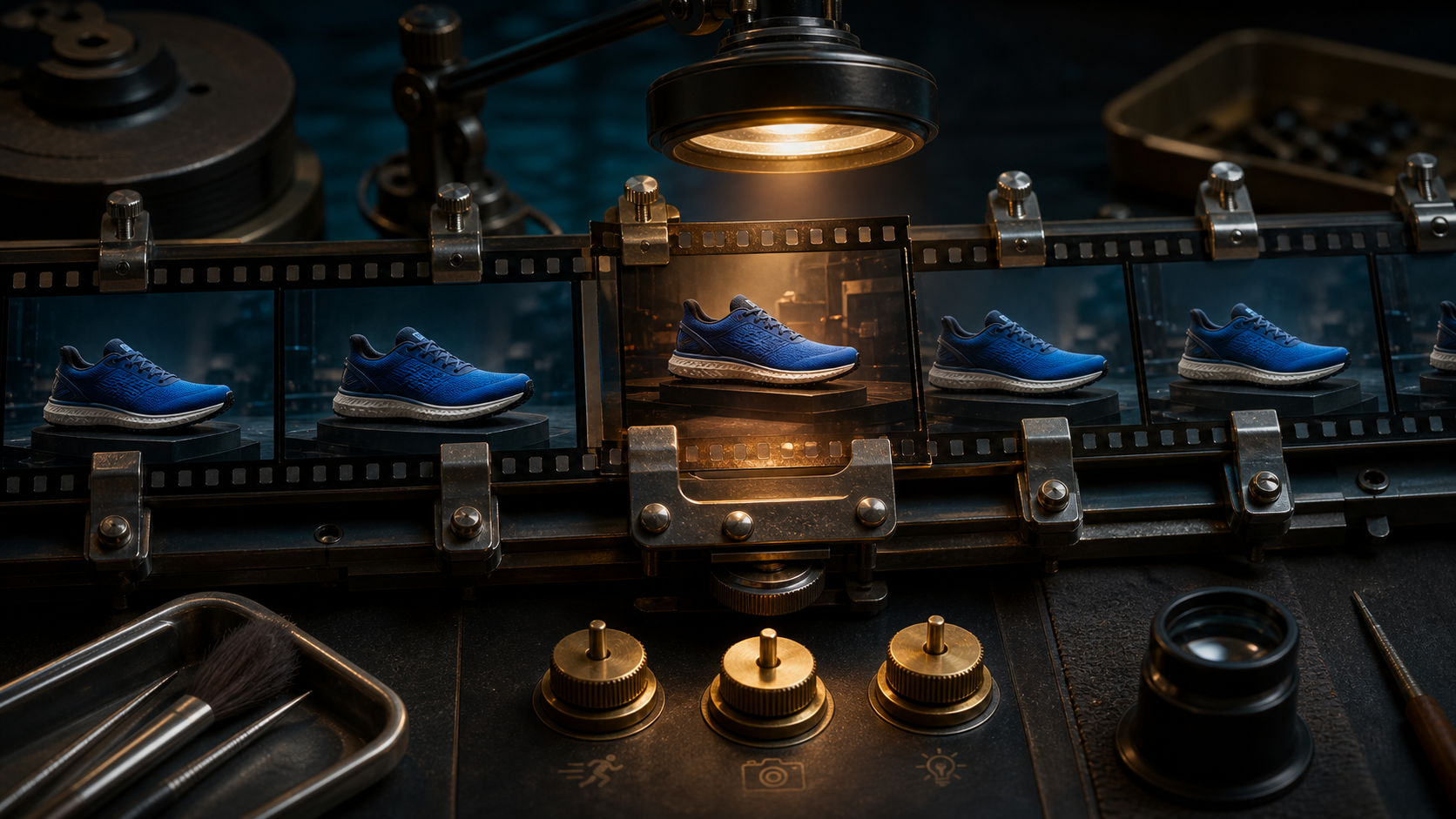
How to Edit AI Video With Prompts Without Starting Over
A good AI video draft often has one annoying problem: the product looks right but the camera drifts, the motion works but the lighting changes, or the scene is useful except for a distracting background. Rebuilding the whole clip can fix that flaw while breaking three things you already liked. That is why the most useful part of Google's July 2026 Vids update is not simply another generation button. Gemini Omni in Google Vids is designed to accept everyday language, image references, and step-by-step edit requests. Google says creators can describe changes such as swapping a background, fixing lighting, or adding an effect without beginning again. The larger lesson applies across AI video tools: treat editing as a sequence of controlled revisions, not as a fresh prompt lottery. The method below helps you keep the parts that work, diagnose the part that does not, and spend fewer generations chasing a usable result.
Start with a change brief, not a prettier prompt
Before you type an edit request, write three short lines:
- Keep: the subject, product shape, camera angle, timing, and framing.
- Change: one visible problem.
- Reject if: the edit alters identity, geometry, branding, or shot length. For example:
Keep the blue running shoe, its proportions, the low camera angle, and the five-second duration. Change only the lighting to soft late-afternoon window light. Reject any result that changes the shoe color, sole pattern, or camera movement. This is more useful than asking for a result to look better. The model receives a clear target, while you receive clear review criteria. If a tool supports a reference frame, attach the cleanest frame from the current clip so the visual anchors are explicit.
Use one edit per pass
A prompt that asks for a new background, warmer light, slower movement, cleaner reflections, and a different lens gives the model too many ways to fail. Split that request into separate passes. A sensible order is:
- Fix subject or product consistency.
- Fix the main motion.
- Fix the camera behavior.
- Fix lighting and color.
- Replace or clean the background.
- Add optional effects last.
Earlier passes protect the structure of the shot. Later passes handle appearance. If you replace the background first and then repair motion, the motion edit may rebuild the scene and undo your background work.
Name every saved version by purpose, such as
shoe-motion-v2,shoe-light-v3, andshoe-background-v4. That small habit makes comparison easier and stops the latest output from automatically becoming the winner.
Write edit prompts with locked invariants
A reliable edit prompt has four parts: the target change, the locked details, the desired intensity, and the failure conditions. Here are practical examples.
Fix uneven lighting
Change only the lighting. Use soft daylight from camera left with consistent exposure across the full shot. Keep the person, face, clothing, room, camera position, movement, duration, and color palette unchanged. No flicker, pulsing brightness, new objects, or skin smoothing.
Replace a distracting background
Replace only the background with a quiet concrete studio wall in warm gray. Preserve the bicycle, rider, body position, wheel motion, camera tracking, shadows under the tires, and six-second timing. Match the existing perspective and light direction. Do not add signs, windows, text, or extra props.
Repair product motion
Keep the bottle design, label placement, materials, background, lighting, and camera locked. Change only the bottle rotation so it completes one smooth 35-degree turn clockwise over four seconds, then stops. No wobble, shape changes, label distortion, extra rotation, or camera movement.
Calm an overactive camera
Change only the camera movement. Convert the fast orbit into a slow, steady push-in of about 10 percent over five seconds. Preserve the subject action, composition, environment, lighting, facial details, and final frame. No shake, zoom pulse, angle change, or speed ramp. The words
change onlyandpreserveare doing real work. So are measurable limits such as five seconds, 10 percent, or one rotation. Numbers do not guarantee exact physics, but they reduce interpretation.
Use reference images as anchors, not decoration
A reference image is most useful when you state its job. Do not attach three images and hope the model guesses which one controls the product, style, or composition. Label them in the prompt:
Image 1 is the product identity reference. Preserve its shape, cap, label layout, and colors. Image 2 is the lighting reference only. Apply its soft side light, but do not copy its background or camera angle. Edit the current clip only to match those instructions. Choose references that agree with each other. A front-facing product photo and an extreme side-view sketch can create conflicting geometry. For a product demo, start with one identity image, one optional material or lighting reference, and the current video's strongest frame. In Quby Video Studio, organize those inputs before generation so each pass has a defined source and goal. The tool matters less than the discipline: one reference should have one declared responsibility.
Review the edit with a five-point check
Watch the original and revision side by side, first at normal speed and then frame by frame around the problem area. Score each item as pass or fail:
- Requested change: Did the specific issue improve?
- Identity: Did the person, product, or character remain consistent?
- Motion: Did movement stay physically plausible and free from jumps?
- Continuity: Did lighting, background, and camera remain stable over time?
- Usability: Can the clip cut cleanly into the intended sequence? Do not accept a revision merely because the requested change looks good in one frame. A background swap that creates a two-frame edge shimmer is still a failed edit. A lighting repair that changes the product color is also a failure. Keep the revision only when it fixes the target without creating a more expensive problem. If two versions pass, choose the one with fewer unintended changes, not the one with more visual drama.
Know when to edit and when to restart
Continue editing when the subject identity is stable, the composition is useful, the main action reads clearly, and the flaw is local. Lighting, background clutter, camera speed, a small motion error, or a mild effect are good edit candidates. Restart from the prompt or source image when the product geometry is wrong, the character changes identity, the central action is missing, the shot uses the wrong viewpoint, or several failures interact. Three repair passes on a broken foundation usually cost more time than a clean generation with better constraints. Use a simple stopping rule: after two focused edits fail to improve the same issue, return to the last clean version and rewrite the base prompt. Do not stack a third vague correction onto a drifting clip.
Build a reusable revision ladder
For repeatable creator work, save a short prompt ladder with your project:
- Base shot prompt with subject, action, camera, duration, and setting.
- Identity lock prompt for the person or product.
- Motion correction prompt.
- Camera correction prompt.
- Lighting correction prompt.
- Background correction prompt.
- Final continuity check. This turns each generation into a traceable production choice. It also makes tool comparisons fair because you can test the same source, prompt, and acceptance criteria instead of relying on memory. If you want to try the method on a product demo or short social clip, bring one strong reference frame into Quby, generate the base shot, and make the smallest useful correction first. Save every passing stage so you can always return to a version that worked. Prompt-based editing is most valuable when it protects good work. Lock the invariants, change one thing, review the whole clip, and restart only when the foundation is wrong. That is how a conversational edit feature becomes a dependable creator workflow.
Ready to Create with AI?
Put these techniques into practice with Quby's professional AI creative tools.
Launch Creative Suite