How to Caption a Short Video So Viewers Can Follow It Muted
Create and review captions for a short video in Quby Clip Editor with a transcript, timing check, and phone preview.
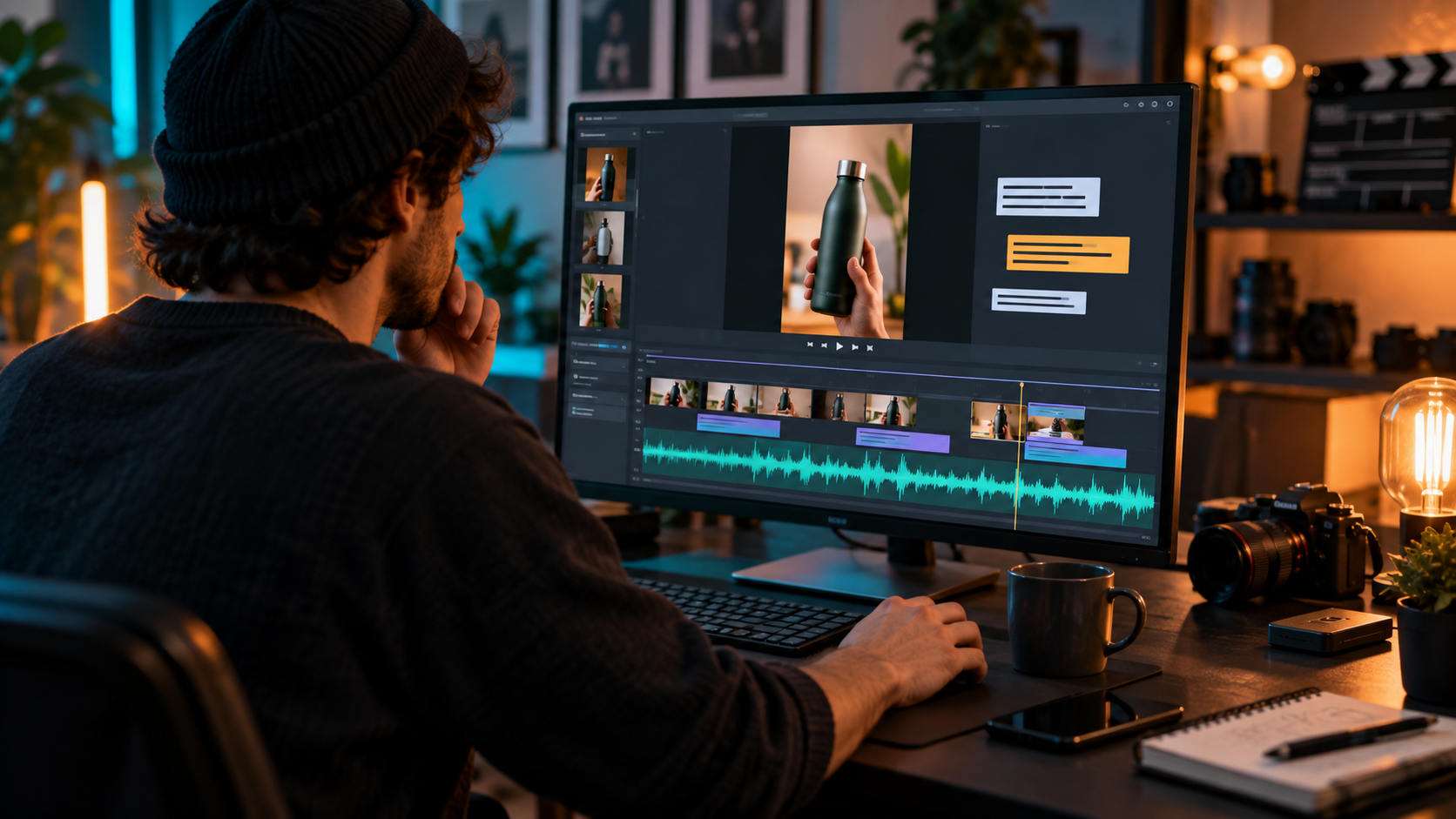
Captions are not decoration. They carry dialogue and meaningful sound when a viewer cannot hear the audio. A short product clip may look polished with large animated words, yet still fail someone who needs accurate timing, speaker changes, or a sound cue. Begin with a transcript, edit it against the source video, and then decide how it should appear on screen.
Quby Clip Editor is the practical editing destination for this workflow. Quby's public Clip Editor page describes an editing timeline and auto-captioning; the exact upload and export controls can vary in the signed-in app. The W3C guide to captions explains why captions include relevant non-speech audio as well as spoken words. This article combines that accessibility rule with a concise editorial review process. It does not claim that an automatic transcript was tested on your audio.
Make a source transcript first
Watch the original clip once without typing. Identify the speaker, the key claim, and any sound that changes the meaning. Then transcribe the words as spoken. Do not polish a customer's quote into a stronger testimonial or add a product claim that was never said. If speech is unclear, ask the speaker to confirm it or mark it for review. A confident but wrong caption is especially risky when it names a price, ingredient, feature, or deadline.
For a 20-second demonstration, the source transcript might be: "I attach the filter, press once, and pour. The light turns green when it is ready." The useful sound cue might be "[click]" if it signals the attachment is seated. A decorative music bed rarely needs a word-by-word description, but music that conveys a meaningful change may need one. The W3C guidance distinguishes speech and relevant non-speech information; use that test rather than captioning every background noise.
Keep the transcript as a separate file or note. It becomes the reference when automatic recognition guesses at proper names or when you later cut the clip. If you have multiple speakers, mark each turn consistently. Captions should reflect the final edit, not an earlier longer recording.
Build the edit in Quby
Open Quby Clip Editor and sign in if needed. Import a video you own or are licensed to edit. Before using any automatic caption control available in your account, trim the clip to its intended start and end. Otherwise you can spend time correcting lines that will be removed.
If the editor offers auto-captioning, treat its output as a draft. Compare each phrase with your transcript. Check names, product terms, quantities, and punctuation. Move breaks so a viewer can finish one thought before the next appears. If the editor does not expose the caption format you need, export the video and add a separate caption track in a compatible tool. Quby's public page describes a capability; the account's current controls decide the actual route.
Place captions where they remain visible after platform UI covers the screen. On a vertical clip, leave space near the bottom for the app's buttons and description. Avoid covering the product or a person's mouth when those details matter. Preview on a phone-sized display at normal speed. High contrast and a simple typeface help, but neither rescues inaccurate wording.
Review the captions with the sound off
Mute the clip and watch it from beginning to end. Can you follow the full idea? Are speaker changes clear? Does a cue such as "[doorbell]" appear at the moment it matters? Are captions on screen long enough to read? Then turn the audio back on and check timing. A line arriving late can make a demonstration confusing even if every word is correct.
Review the exported file, not only the timeline preview. Look for missing lines after a transition, text clipped by the frame, or a caption hidden behind a call to action. Export settings and social platforms can change the framing. Upload a private or unlisted draft if the destination offers one, and check it in the actual player.
W3C describes two common delivery forms: closed captions that viewers can switch on or off, and open captions burned into the picture. A platform's accessible caption track is preferable when available because viewers can control it. Burned-in words can support a social-first design, but they are not always an adequate replacement for a selectable, accessible track. Check what your publishing platform accepts, and retain a corrected transcript for reuse.
Keep the edit honest
Do not let captions change the meaning of a quote. If a clip cuts between sentences, do not stitch words into a new claim. If a sound effect is added after filming, avoid captioning it as though it were a real event that proves a product works. For a multilingual version, have a fluent reviewer check the translation; automatic timing and translation can both fail on names and technical words.
For teams, assign one person to approve spoken claims and another to check the final on-screen file. A small review table is enough: exact words, important sound cues, timing, phone readability, and platform preview. Save the original, transcript, edit, and final export with related names so corrections are easy later.
Ready to edit? Bring a rights-cleared short clip and its transcript to Quby Clip Editor. Correct the captions against the audio, then watch the exported version muted on a phone before publication. The goal is a viewer who can understand the clip without guessing.
Sources: Quby Clip Editor and W3C captions guidance.
Ready to Create with AI?
Put these techniques into practice with Quby's professional AI creative tools.
Launch Creative Suite