AI Video Generator 2026: Turn Text into Captivating Videos with Quby's Studio
It's 2026: turn
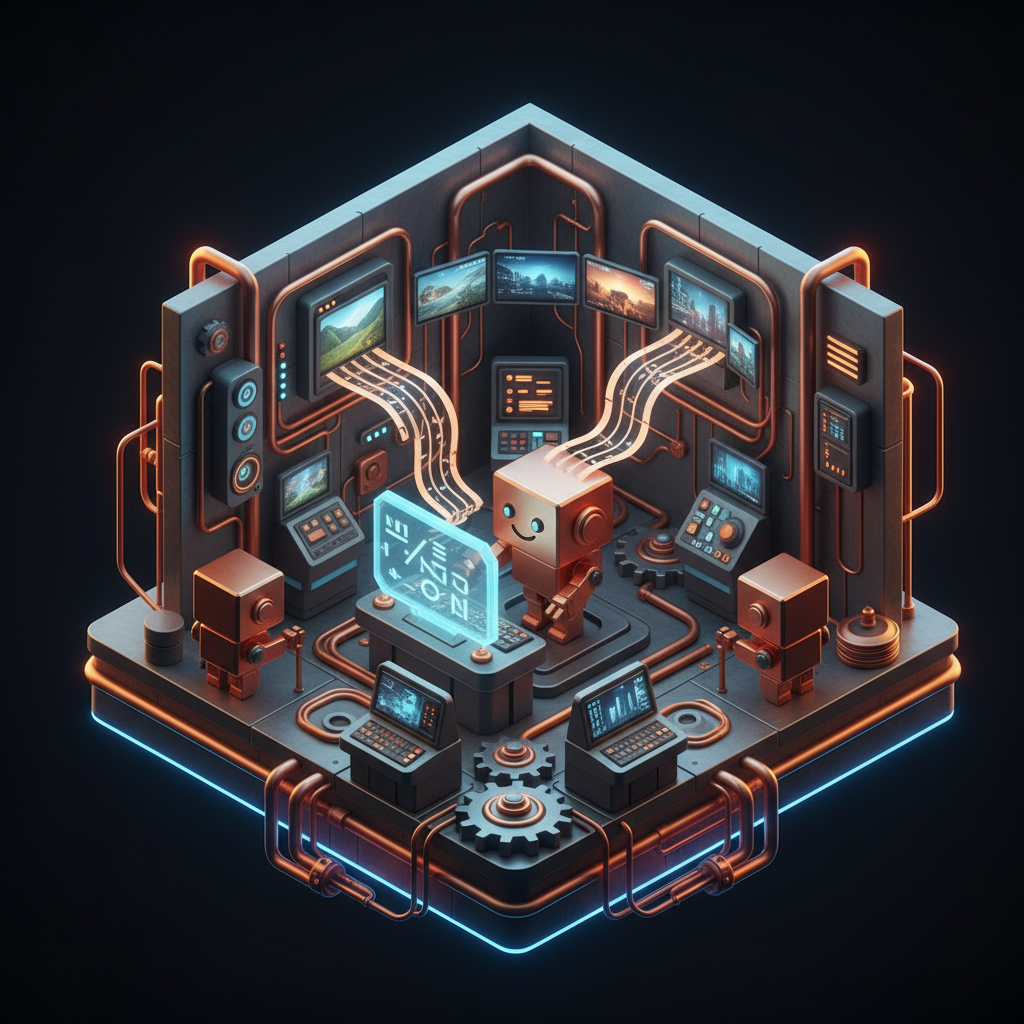
The AI Video Revolution of 2026: From Text to Visual Storytelling
Remember when generating a decent image with AI felt like magic? Well, hold onto your hats, because it's March 2026, and the world of AI video is where the real enchantment happens. What was once a futuristic dream, turning a few lines of text into a full-blown, captivating video, is now not just possible, but incredibly powerful and accessible. We've moved far beyond blurry, inconsistent clips. Today, the leading models like Google's Veo 3.1, Runway 4.5, Kling 3, Minimax Video-02, and Sora 2.0 are churning out footage that's almost indistinguishable from live-action, complete with realistic physics, emotive characters, and complex scene dynamics.
This isn't just a tech demo anymore. This is a seismic shift in how we create content, how we tell stories, and how businesses connect with their audience. Imagine writing a paragraph about a fantastical creature exploring an alien jungle, and moments later, watching that exact scene play out with stunning visuals and sound. That's the power of the modern ai video generator. For marketers, it means rapid ad creation and personalized campaigns. For educators, complex concepts become engaging visual lessons. And for everyday creators? It's an open invitation to bring any vision to life, no film crew, expensive equipment, or even animation skills required.
The barrier to entry has evaporated. You don't need to be a seasoned filmmaker or a motion graphics expert to produce something truly remarkable. All you need is an idea, some well-chosen words, and the right text to video AI platform. This is where Quby's video studio steps in, making this revolution genuinely democratic. It's not just about what AI can do, it's about what you can do with AI, right now.
Why Quby's Video Studio is Your Go-To AI Video Generator
Okay, so the AI video landscape in 2026 is pretty crowded with impressive tools. So why choose Quby? It's a fair question, and here's the straightforward answer: Quby isn't just another ai video maker. It's a comprehensive creative suite designed from the ground up to integrate the best of what AI has to offer, all under one incredibly user-friendly roof.
Think about it this way: producing a high-quality video isn't just about generating moving pictures. You need compelling visuals, yes, but also crystal-clear voiceovers, evocative music, perhaps even custom 3D models or hyper-realistic images to set the scene. Most platforms tackle one piece of that puzzle. Quby brings it all together.
Our Quby video studio is powered by a sophisticated engine that intelligently orchestrates a blend of state-of-the-art models. While others might focus on just video generation, Quby seamlessly weaves in the capabilities of top-tier AI image models like FLUX 1.1, Grok Imagine, Gemini 2.5, and GPT-5 DALL-E for character design and scene details. For that perfect voice, it integrates advanced voice AI like ElevenLabs v3, Bark 2.0, and OpenAI TTS-HD, ensuring your narrations sound genuinely human, not robotic. And if your vision includes intricate objects or environments, Quby can even tap into powerful 3D models like Meshy v4, Trellis, Rodin Gen-2, and Tripo3D v3 to populate your scenes.
What does this mean for you? It means unparalleled consistency across all your assets. No more struggling to match the visual style of your generated video with a separately generated image or voiceover. Quby ensures everything feels cohesive, professional, and exactly how you envisioned it. It's built for speed, too. You won't spend hours wrestling with complex interfaces or waiting for renders. Instead, you'll be iterating on ideas and bringing them to life faster than ever before. If you're looking to create videos with AI that truly stand out in 2026, Quby is engineered to be your most powerful ally.
Step-by-Step: Creating Your First AI Video from Text with Quby
Ready to jump in? Let's walk through how simple it is to use Quby's video studio to transform your ideas into dynamic visuals. It's a streamlined process, but each step offers plenty of room for creative input.
Step 1: Spark Your Idea and Draft Your Script Before you even touch Quby, have a clear vision. What's the story you want to tell? What's the core message? Write a brief script or even just a detailed paragraph outlining your scenes, characters, actions, and dialogue. The clearer your input, the better Quby can interpret it.
Example prompt idea: "A jovial, elderly wizard with a long white beard attempts to bake a cake, but his spells go awry, causing the kitchen to fill with colorful, bouncing cupcakes."
Step 2: Enter Your Vision into Quby's Prompt Field Head over to the Quby.app platform and navigate to the video studio. You'll find a welcoming text input box. This is where your creativity begins to take shape. Paste or type your script or detailed description here. Be descriptive, but concise. Think in terms of scenes and shots. You can even specify mood, lighting, and camera angles if you wish.
"Scene 1: Interior, quaint cottage kitchen, daytime. An elderly, cheerful wizard, long white beard, wearing a blue robe, stands at a counter. He's holding a whisk. Close-up on his focused, slightly mischievous expression as he prepares cake batter.
Scene 2: Wider shot. He mutters an incantation, small magical sparks fly from his hand into the bowl. The batter glows.
Scene 3: Suddenly, the batter explodes into dozens of brightly colored cupcakes that bounce playfully around the kitchen. The wizard looks surprised, then chuckles.
Scene 4: The cupcakes gently settle, covering every surface of the kitchen. The wizard picks one up, takes a bite, and smiles contentedly."
Step 3: Initial Video Generation and Style Selection Once you submit your text, Quby gets to work. Within moments, you'll see initial drafts of your scenes. This is where Quby truly shines as an ai video generator. You'll be presented with options for visual styles - think photorealistic, anime, painterly, stop-motion, or even a stylized 3D look. Pick the one that best matches your project's aesthetic. Quby's powerful engine, tapping into models like Sora 2.0 and Runway 4.5, will then refine these drafts based on your chosen style.
Step 4: Crafting Your Visuals: Characters, Scenes, and More Now for the fun part: adding depth to your visuals.
- Characters: If your script mentions specific characters, you can fine-tune their appearance. Adjust clothing, facial features, expressions. Quby might even suggest pre-designed character models, or you can describe new ones based on the capabilities of FLUX 1.1 or GPT-5 DALL-E.
- Scenes: Want to change the lighting or add specific objects to your kitchen scene? Describe it! Quby will update the visuals accordingly.
- Actions: If the initial generation didn't quite capture the wizard's "mischievous" expression or the "playful" bouncing of cupcakes, you can refine those action descriptions.
Step 5: Add the Perfect Voiceover and Sound Effects A great video needs great sound.
- Voiceover: If your script has dialogue or narration, use Quby's integrated voice AI. Choose from a range of voices, accents, and emotional tones powered by ElevenLabs v3 or OpenAI TTS-HD. Simply highlight the text, select a voice, and generate. You can even tweak the speed and pitch.
- Sound Effects: Quby offers a library of sound effects. Add a magical sparkle for the spell, a gentle "boing" for the bouncing cupcakes, and a satisfied munching sound for the wizard.
Step 6: Integrate Music and Set the Mood Music is crucial for setting the tone. Browse Quby's curated music library, filtering by genre, mood, or tempo. Drop it into your timeline, adjust its volume, and ensure it complements your visuals. A whimsical, lighthearted track would be perfect for our wizard.
Step 7: Preview and Basic Edits With all elements in place, hit preview. Watch your story unfold! If a scene feels too long, a transition too abrupt, or a voiceover needs adjusting, Quby's intuitive timeline editor lets you make quick, precise changes. You'll find it incredibly simple to create videos with AI that look and sound polished.
Elevate Your AI-Generated Video: Customization and Refinement
Getting your first draft out of a text to video AI is exciting, but making it truly sing requires a bit more finessing. Quby's studio isn't just about initial generation, it's about providing the tools to elevate your AI-generated video to a professional standard.
Mastering Prompt Iteration for Visual Consistency The first generation is a starting point. Don't be afraid to go back and tweak your text prompts. If your wizard's beard isn't "long and white" enough, or the cupcakes aren't "brightly colored," refine those descriptions and regenerate just that specific segment. Quby understands nuanced instructions, ensuring your characters maintain a consistent look and feel across different scenes, a feature that's a hallmark of advanced 2026 AI video trends.
Advanced Editing: Beyond the Basics Within Quby, you've got more than just cut and paste.
- Scene Transitions: Choose from a range of fades, dissolves, and wipes to move smoothly between your generated clips.
- Timing Adjustments: Precisely control the duration of each scene and the pacing of your dialogue or narration.
- Overlays and Text: Add dynamic text overlays for titles, captions, or calls to action. Incorporate graphical elements to enhance your visual story.
- Camera Control: For certain scenes, you can guide the AI to perform specific camera movements - a slow pan, a quick zoom, or a tracking shot. This gives your ai video maker much more directorial control.
Integrating External Assets for a Unique Touch Sometimes, you have a specific visual in mind that AI hasn't quite captured, or perhaps you want to blend AI output with traditional media.
- Custom Images: Upload your own images, whether they're photos you've taken or high-quality AI-generated art from tools like Grok Imagine or Ideogram 3.0. Use them as background elements, overlays, or even as source material for Quby to animate.
- Video Clips: Have a short piece of footage you want to integrate? Drop it right into your Quby timeline.
- 3D Models: If your project demands highly specific 3D elements, you can even import models created with tools like Rodin Gen-2 or Tripo3D v3, and Quby will attempt to render and integrate them into your scenes, matching the lighting and style as best as possible.
Color Grading and Mood Adjustments The overall look and feel of your video can be profoundly affected by color. Quby provides basic color grading tools, letting you adjust brightness, contrast, saturation, and even apply stylistic filters to achieve a specific mood - warm and inviting, cool and mysterious, vibrant and energetic. This final polish can transform a good video into a truly memorable one.
Subtitles and Accessibility Don't forget accessibility! Quby can automatically generate subtitles from your voiceover track, or you can manually add them. This is crucial for reaching a wider audience and making your content consumable in various environments.
Pro Tips for Maximizing Your Text-to-Video AI Output in 2026
Alright, you're getting the hang of it. Now, how do you go from simply making an AI video to making an incredible one? Here are some insider tips to really make your ai video generator work for you, especially with Quby's powerful Quby video studio.
1. Treat Prompt Engineering Like Storyboarding Think of your text prompts not just as commands, but as miniature storyboards. Break down your narrative into distinct scenes. For each scene, include:
- Setting: "Lush enchanted forest, dappled sunlight."
- Characters: "A nimble fairy, iridescent wings, green dress."
- Action: "She gracefully flies through ancient trees, scattering glowing dust."
- Mood/Style: "Dreamlike, whimsical, soft focus."
- Camera Angle (Optional but Powerful): "Tracking shot following the fairy," or "wide shot revealing the forest's scale." The more specific and visual your text, the better the AI's output. And don't be shy with negative prompts: "avoid static shots," "no harsh shadows."
2. Focus on Brevity and Impact Per Scene AI models, even in 2026, excel at generating relatively short, impactful scenes. Instead of one long, rambling prompt, break your narrative into several shorter, punchier scene descriptions. You can always stitch them together and adjust timing in Quby's editor. This gives the AI less "story" to forget or misinterpret within a single generation, leading to more consistent results.
3. Embrace Iteration: Don't Settle for the First Draft Just like a human artist doesn't get it perfect on the first sketch, AI rarely nails your exact vision on the first try. Generate multiple versions of a scene. Tweak a word, change a style parameter, adjust the camera angle in your prompt. You'll be amazed at the difference a small change can make. The beauty of text to video AI is that iteration is fast and cheap.
4. Combine AI's Strengths with Your Human Touch AI is a powerful co-pilot, but it's not a replacement for human creativity and judgment. Use Quby to generate the bulk of your visuals, voices, and music. Then, step in to refine, add bespoke edits, and infuse your unique artistic flair. Maybe you want to overlay a specific hand-drawn animation, or add a personal voiceover. This blend often produces the most compelling results.
5. Stay Ahead of 2026 AI Video Trends The landscape moves incredibly fast. In 2026, we're seeing huge advancements in:
- Real-time Editing: The ability to make minor visual adjustments on the fly within the generated video.
- Hyper-realistic Physics: Objects interacting with their environment with greater fidelity, less "jank."
- Emotional Depth: AI-generated characters expressing more subtle and believable emotions.
- Complex Scene Coherence: AI maintaining consistency over longer, more intricate narrative arcs. Keep an eye on what's new. Quby is always integrating these advancements, so exploring new features within the platform can unlock entirely new creative possibilities. Don't be afraid to experiment with different styles and generation settings. Sometimes, the most unexpected outputs turn into your best ideas.
The Future of Content Creation is Here with Quby's AI Video Studio
The advent of powerful ai video generator tools like Quby has truly reshaped the terrain of content creation in 2026. What felt like science fiction just a couple of years ago is now a daily reality for thousands of creators, marketers, educators, and storytellers. The ability to simply describe your vision and watch it manifest as a vibrant, engaging video isn't just a technological marvel, it's a profound democratizer of creativity.
No longer do you need to sink vast amounts of time and money into complex production pipelines. With text to video AI, you can iterate rapidly, experiment fearlessly, and bring ideas to life at the speed of thought. Quby's comprehensive suite, integrating the latest in voice, image, and 3D AI, makes it a uniquely powerful ai video maker. It ensures that from your initial spark of an idea to your final polished video, every element aligns seamlessly.
So, whether you're crafting a quick social media ad, producing an in-depth explainer video, or simply telling a personal story that's been bubbling in your imagination, Quby's video studio provides the tools you need. It's not just about efficiency, though that's a huge plus. It's about unlocking new forms of expression, allowing anyone, regardless of technical skill, to become a visual storyteller.
Your stories are ready to be told. Why keep them confined to text? Take that leap. Explore the possibilities with Quby today, and start creating videos that truly captivate.
Ready to Create with AI?
Put these techniques into practice with Quby's professional AI creative tools.
Launch Creative Suite