AI Spaces: Build Node-Based Creative Workflows Like a Pro
Connect AI tools visually with drag-and-drop nodes. Chain image generators, video creators, upscalers, and more into powerful automated pipelines.
What Are AI Spaces?
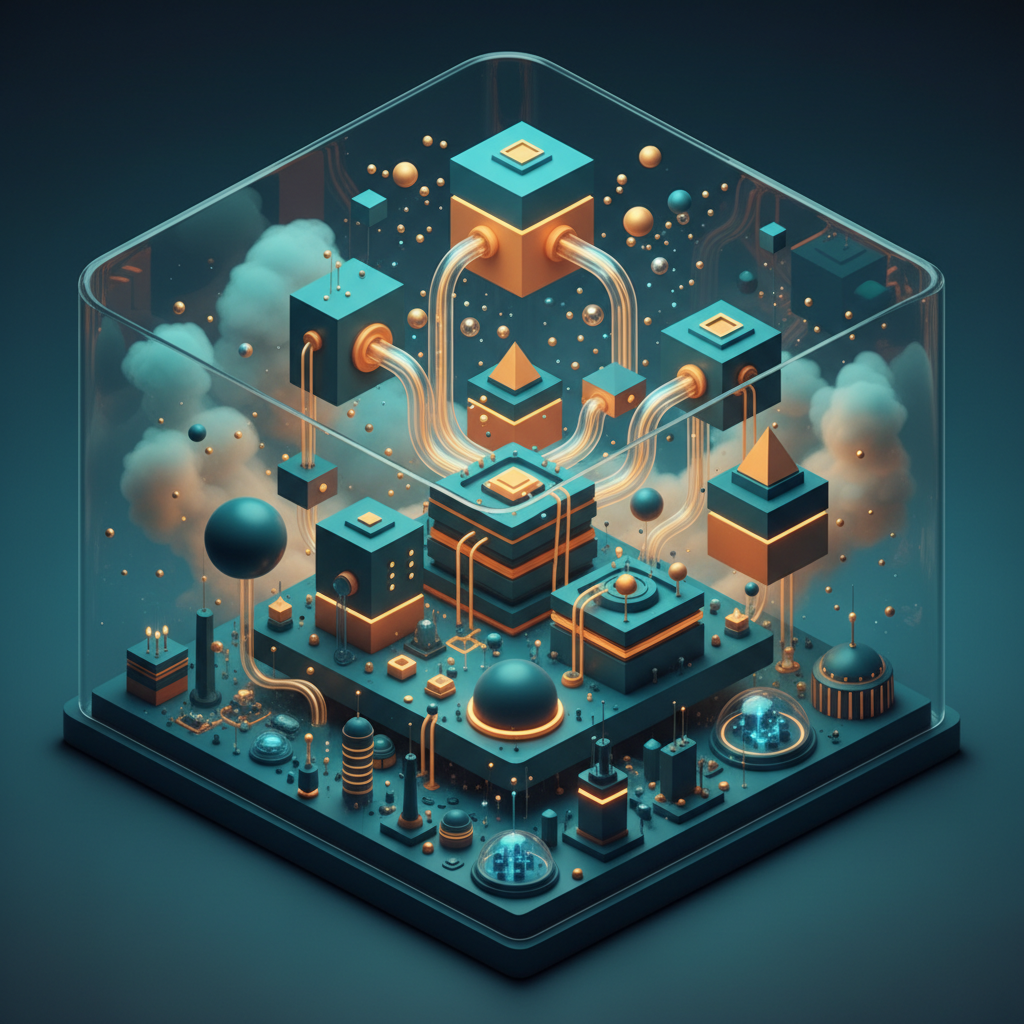
Spaces is Quby's node-based workflow builder that lets you connect multiple AI tools into automated creative pipelines. Think of it as a visual programming environment for AI - no coding required.
Instead of using one tool at a time, Spaces lets you chain them together. Generate an image, upscale it, swap a face, animate it into a video - all in a single connected workflow.
Why Node-Based Workflows Matter
Traditional AI tools force you to work linearly: generate, download, re-upload, process, download again. Spaces eliminates this friction entirely.
Before Spaces
- Open Image Generator -> generate image -> download
- Open Upscaler -> upload image -> upscale -> download
- Open Video Generator -> upload upscaled image -> generate video -> download
- Open Face Swap -> upload video -> swap face -> download
With Spaces
Connect nodes once, run the entire pipeline with a single click. Every output flows automatically to the next step.
Available Node Types
Image Generation
Generate images using Gemini, FLUX, Grok, Imagen, Recraft, and more. Each model has unique strengths - Gemini for photorealism, FLUX for artistic styles, Recraft for vectors.
Video Generation
Create videos from images or text using Kling 3, Veo 3, Runway Gen-4, and Minimax. Control duration, aspect ratio, camera movement, and more.
Vector Generation
Produce SVG vector graphics with Recraft V4. Perfect for logos, icons, and scalable artwork.
Face Swap
Swap faces in images or videos with photorealistic results. Works with any face photo as input.
Upscale
Enhance resolution with Magnific, Clarity, or Aura. Control creativity level, HDR strength, and output scale.
Text Input
Feed prompts, descriptions, or any text data into your workflow.
Output
Collect and preview final results from any point in your pipeline.
Building Your First Space
- Create a new Space from the Spaces dashboard
- Add nodes by clicking the + button or dragging from the toolbar
- Connect outputs to inputs by dragging between node ports
- Configure each node with model selection, parameters, and prompts
- Run the pipeline and watch results flow through your workflow
Advanced Tips
Branching Workflows
One output can feed multiple nodes. Generate an image once, then create both a video and an upscaled version simultaneously.
Model-Specific Settings
Each node exposes settings specific to the selected model. Kling 3 nodes show multishot mode and CFG scale. Magnific nodes show creativity and HDR sliders.
Saving and Reusing
Spaces are saved automatically. Build template workflows and reuse them for consistent output across projects.
Real-World Use Cases
Product Photography Pipeline
Text prompt -> Image Generator (Imagen 4) -> Upscaler (Magnific) -> Output
Social Media Content Factory
Text prompt -> Image Generator -> Video Generator (Kling 3) -> Output
Character Design Workflow
Text prompt -> Image Generator -> Face Swap -> Upscaler -> Output
Get Started with Spaces
Spaces is available now in beta. Open Quby, navigate to the Apps menu, and select Spaces to start building your first AI workflow.
Ready to Create with AI?
Put these techniques into practice with Quby's professional AI creative tools.
Launch Creative Suite