AI Image Refinement 2026: Elevate Your Creative Workflow with Quby's Editor
Your breathtaking AI art in 202
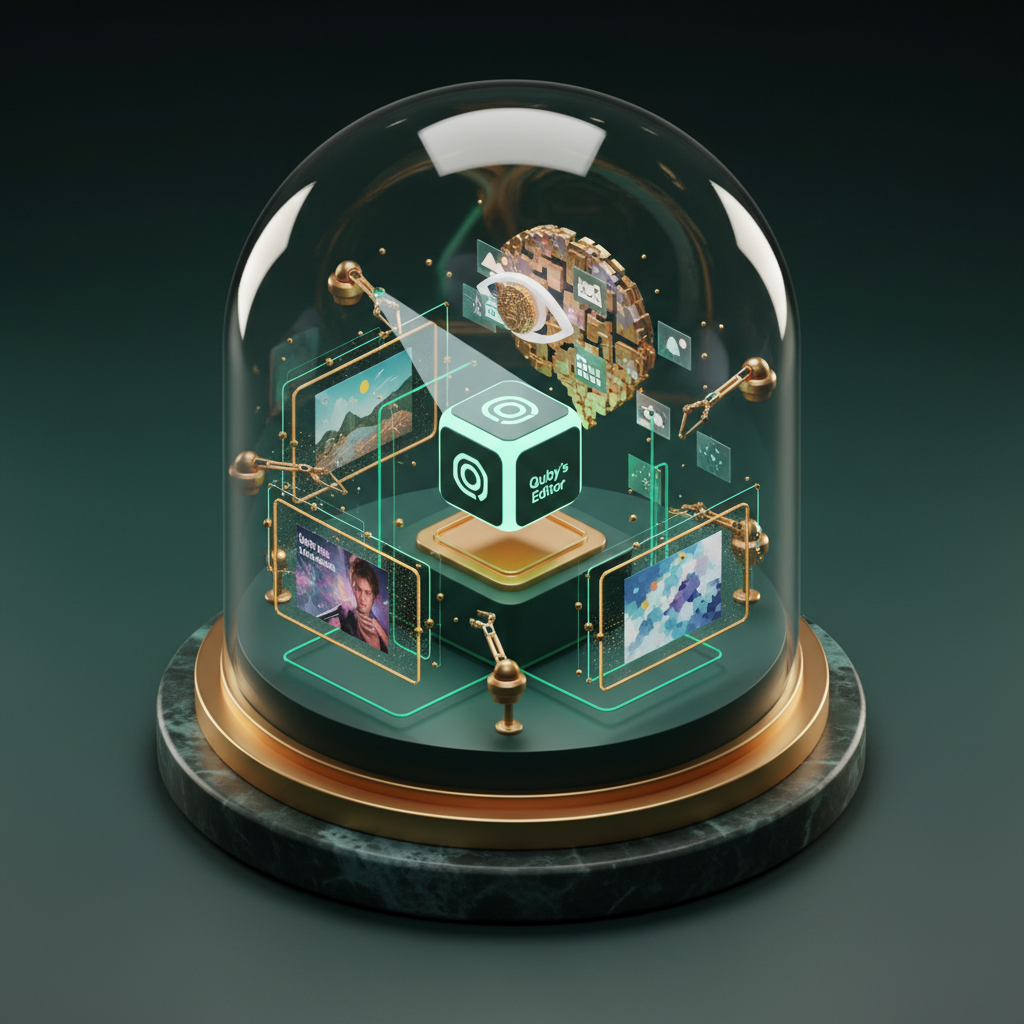
The Post-Generation Challenge: Why Raw AI Isn't Always Enough in 2026
It's March 2026, and if you're a designer or content creator, you've probably got FLUX 1.1, Grok Imagine, or GPT-5 DALL-E running in the background right now. These models, along with Ideogram 3.0 and Gemini 2.5, are simply astonishing. We're generating breathtaking visuals with just a few well-crafted prompts. From intricate concept art to photorealistic product shots, the output quality is higher than we could have dreamed of just a few years ago. But let's be honest, how often does that first render hit the mark perfectly?
Not often, right?
Even with the incredible leaps in AI image generation, there's still a gap between a stunning raw output and a professional, client-ready asset. You know the drill: an almost perfect image, except for that slightly distorted hand, a subtle lighting inconsistency, or a background element that just feels off. Maybe the overall mood isn't quite what you had in mind, or it doesn't quite match the rest of your brand's visual identity. These aren't huge flaws, but in the competitive world of ai for designers and ai for content creators, "almost perfect" just doesn't cut it.
We're beyond the era where a slightly wonky AI image was a quirky novelty. Now, clients expect polished, consistent, and intentional visuals, regardless of how they were made. This is the post-generation challenge: how do you take the fantastic, but sometimes imperfect, output from today's generative AI models and refine it into something truly exceptional? How do you ensure your ai creative workflow delivers not just quantity, but impeccable quality?
Traditional image editors are powerful, sure, but they weren't built with AI artifacts in mind. They don't inherently understand the 'language' of generative art. Trying to manually fix AI-generated quirks in a standard editor can be incredibly time-consuming, often feeling like you're fighting against the very pixels you just created. This is where a new category of post-generation ai tools becomes absolutely essential. We need specialized intelligence to bridge that final mile, to iron out the creases, and to elevate the good to the great.
Bridging the Gap: How Quby's AI Image Editor Transforms Generative Art
This is precisely the problem Quby (quby.app) was built to solve. Think of Quby's ai image editor not just as another photo editing tool, but as your intelligent co-pilot specifically engineered for generative art refinement. It understands the nuances of AI-generated images, anticipating common issues and offering intuitive, AI-powered solutions. It's designed to take those nearly-there images from FLUX 1.1 or Grok Imagine and make them indistinguishable from human-crafted perfection.
What makes Quby different? It's all about intelligent assistance. Instead of brute-force manual adjustments, Quby employs a suite of advanced algorithms that understand context, content, and artistic intent. For instance, have you ever tried to upscale an AI image, only to find it loses its delicate textures or introduces new artifacts? Quby's upscaling isn't just about pixel multiplication, it intelligently reconstructs detail, preserving the stylistic integrity of your original AI generation.
Let's talk about precision. Maybe your Grok Imagine output has a character's arm slightly too long, or a background element that's distracting. With Quby, you're not just cloning pixels. You're using intelligent selection tools and generative fill capabilities that understand the surrounding content and seamlessly integrate your changes. It's about more than just patching things up; it's about making improvements that feel native to the image, not like an afterthought.
The editor provides granular control over lighting, color, and atmosphere. You can effortlessly adjust the mood of a scene generated by GPT-5 DALL-E, shift color palettes to match a specific brand guide, or enhance highlights and shadows to add dramatic depth. It's not just about correcting errors, but also about imbuing your AI art with a stronger, more intentional artistic voice.
For ai for content creators, this means less time fiddling with sliders and more time focusing on storytelling. For ai for designers, it means maintaining a consistent visual language across all your assets, even when they originate from different AI models. Quby is purpose-built for the demands of ai image editing 2026, acting as the vital link in your ai creative workflow that ensures every visual you produce is of the highest caliber. It's the difference between an image that's good enough and one that truly captivates.
Mastering Quby: A Step-by-Step Workflow for AI Image Refinement
Ready to turn your AI-generated visuals into absolute showstoppers? Let's walk through a practical workflow using Quby's ai image editor. This isn't just about fixing mistakes, it's about elevating your generative art refinement process to a new level of efficiency and quality.
Step 1: Ingesting Your Masterpiece (or near-masterpiece)
First things first, get your image into Quby. Whether it's a stunning landscape from FLUX 1.1, a character portrait from Ideogram 3.0, or an abstract piece from Gemini 2.5, simply upload it. The interface is clean, you won't get lost.
Step 2: Initial Assessment - The Critical Eye
Before you dive in, take a moment. What are the key areas that need attention?
- Are there any obvious AI artifacts like distorted limbs, repetitive patterns, or odd textures?
- Does the lighting feel natural and consistent?
- Is the color palette aligned with your project's requirements?
- Are there any distracting background elements?
- Does the resolution meet your final output needs?
Knowing what you're looking for upfront saves you time. This step is about setting your goals for the refinement process.
Step 3: Core Refinements - Resolution, Color, and Light
We'll start with the big picture stuff.
- Resolution and Detail: If your image needs to be larger or sharper, use Quby's intelligent upscaling. Unlike generic upscalers, it's designed to enhance and reconstruct details, not just stretch pixels. Apply smart sharpening sparingly to bring out textures without introducing harshness.
- Color and Light: Navigate to the color and lighting adjustments. Here, you can subtly shift the overall mood. Brighten underexposed areas, bring down blown-out highlights, or adjust the white balance to correct color casts. Quby provides intuitive sliders and even some AI-suggested presets that can get you close to your desired look fast. Remember, even minor tweaks can have a huge impact on the emotional resonance of an image.
Step 4: Fixing the Fussy Bits - Compositional Tweaks and Object Manipulation
Now for the details that make all the difference. This is where Quby's post-generation ai tools truly shine.
- Compositional Tweaks: If your AI image has a great subject but the framing is off, use Quby's content-aware expand or re-frame tools. It can intelligently extend the canvas, filling in new areas with contextually relevant imagery. No more awkward cropping or cloning for hours.
- Object Removal: This is a lifesaver. That extra finger, the weird shadow, a logo you didn't want in the background. Select the offending object and let Quby's generative fill erase it seamlessly, intelligently replacing the area with what should be there.
- Object Addition/Modification: Conversely, perhaps you need to add a specific element, like a small prop, a branded icon, or even adjust a facial feature. Quby's AI can help you integrate new elements realistically, matching lighting, texture, and perspective. This is a game-changer for ai for content creators needing to customize assets.
- Small Detail Enhancement: Focus on critical areas like eyes, hair, or intricate patterns. Quby offers specific brushes and tools that can subtly enhance these elements, making them pop without looking over-processed.
Step 5: Stylistic Harmony - Final Polish
Before exporting, take a step back. Does the image now align with your overall project aesthetic? You might want to apply a final color grade or a subtle textural overlay to unify it with other assets. Consistency is key, especially for professional projects. Quby's toolset helps you achieve that cohesive look, making sure your diverse AI outputs sing in harmony.
Step 6: Export and Integrate
Once you're satisfied, export your refined image in the format and resolution you need. Your newly polished visual is now ready for integration into your website, social media campaign, video thumbnail (perhaps from a Sora 2.0 or Runway 4.5 clip), or any other creative output. You've just transformed a raw AI output into a finished, professional-grade asset, all within your ai creative workflow.
Advanced Techniques: Integrating FLUX 1.1, Grok Imagine, and More with Quby
The real power of Quby isn't just its standalone capabilities, it's how it fits into and supercharges your broader ai creative workflow. In 2026, we're not just using one AI model; we're orchestrating a symphony of specialized tools. Quby acts as the crucial conductor for your visual assets, the place where all the pieces come together for final polish and precision.
Let's look at some advanced integration scenarios for ai for designers and ai for content creators:
Scenario 1: From Prompt to Perfection with FLUX 1.1 and Quby
Imagine you're designing a complex promotional image. You start with FLUX 1.1, known for its intricate detail and impressive realism. You prompt for a futuristic city scene with a specific vehicle in the foreground. FLUX 1.1 delivers a stunning base, but perhaps the reflections on the vehicle aren't quite right for the brand's metallic finish, or a specific building in the background needs to be swapped out for a different architectural style.
This is where Quby comes in. You import the FLUX 1.1 output into the quby image editor. With its intelligent object selection and generative fill, you can quickly adjust the vehicle's material properties to match your brand, or swap out a building while maintaining perfect perspective and lighting. It's about taking the raw power of FLUX 1.1's generation and applying surgical, intelligent refinement, ensuring every pixel aligns with your vision. This is the essence of advanced ai image editing 2026.
Scenario 2: Iterative Design and Concepting with GPT-5 DALL-E and Quby
For concept art or logo variations, you might be generating dozens of ideas with GPT-5 DALL-E or Ideogram 3.0. You get several strong contenders, but none are perfect. Instead of endlessly re-prompting and hoping for a lucky roll, pick your top 3-5 and bring them into Quby.
Within Quby, you can rapidly iterate. Maybe one concept has the perfect composition but the wrong color scheme. Another has a fantastic stylistic element but needs a different background. Quby allows you to blend, modify, and fine-tune these elements across different AI generations, creating a truly unique and refined piece that combines the best aspects of several outputs. This drastically speeds up the concepting phase and ensures you're delivering refined options, not just raw ideas.
Scenario 3: Video Stills, 3D Renders, and Beyond
It's not just about static 2D images. Consider the rapidly advancing world of AI video (Sora 2.0, Runway 4.5, Kling 3) and 3D models (Meshy v4, Trellis, Rodin Gen-2). You might pull a keyframe from a compelling video generated by Sora 2.0 to use as a promotional thumbnail. Or maybe you've rendered a product shot in Tripo3D v3. These stills, while impressive, often benefit from a final pass of generative art refinement.
A video keyframe might have minor motion blur artifacts or inconsistent lighting compared to the rest of your static branding. A 3D render might need a specific textural overlay or subtle background adjustment to make it truly pop. Quby is your go-to for these post-generation ai tools, providing the necessary polish without needing to go back into the original complex video or 3D software. It saves time, energy, and ensures consistency across all your media types.
Using Quby in this way isn't just about correction. It's about adding a layer of deliberate artistic control that elevates the raw output of any AI model into a truly professional-grade asset. It's the intelligent studio where disparate AI creations achieve a unified, polished, and intentional look.
The Future of Creative AI: Quby's Role in Your 2026 Design Toolkit
The creative landscape of 2026 is complex, exciting, and moving at an incredible pace. We've seen the rise of hyper-realistic image generation, truly expressive video models like Veo 3.1 and Minimax Video-02, and voice AI that's practically indistinguishable from human speech, thanks to ElevenLabs v3 and OpenAI TTS-HD. But as AI models become more specialized and powerful, the need for a central hub that brings it all together, that refines and polishes, becomes more critical than ever.
Quby isn't just keeping up with these trends. It's defining how ai for designers and ai for content creators will work in the coming years. It's the intelligent bridge that connects the raw output of generative AI to the precise demands of professional creative work. It transforms an impressive generation into an impeccable publication.
Imagine an ai creative workflow where you can confidently generate visuals from any leading model, knowing that Quby will provide the final, intelligent layer of control and refinement. You won't waste hours trying to prompt out a tiny detail or meticulously clone-stamping imperfections. Instead, you'll focus on the big ideas, the strategic vision, and the core message of your creative project.
The real revolution of AI isn't about replacing human creativity. It's about augmenting it, empowering us to do more, faster, and with greater precision. Quby embodies this philosophy. It's a powerful ally in your toolkit, enabling you to produce stunning, polished visuals with an efficiency that was simply unimaginable a few years ago. And it helps you maintain that vital human touch, the final discerning eye that elevates art from algorithm to masterpiece.
Ready to take your AI-generated visuals to the next level? Give the Quby editor a try today at quby.app. See how much time you save and how much better your final pieces look.
Ready to Create with AI?
Put these techniques into practice with Quby's professional AI creative tools.
Launch Creative Suite